
How to Share a Jewelry Catalog With Clients Without Sending a Single Attachment
The standard jewelry studio client presentation workflow goes something like this. You generate or photograph twenty pieces, export the images, compress them into a ZIP file, attach it to an email, and send it with a note explaining what everything is. The client downloads it, opens the files in whatever image viewer their laptop defaults to, and replies with feedback written in prose — "I liked the third ring but can the stone be bigger, also the necklace in the second image felt too heavy for what we discussed."
You then match that prose to a folder of files named IMG_0043 through IMG_0062 and try to figure out which ring was third and which necklace they meant.
There is a better way, and it does not require the client to create any account or install anything.
External share links
Every Catalog in Studio can generate named external share links. From the Catalog, create a link, give it a name — the client's name, the meeting date, whatever helps you track it — and copy it to clipboard. Send that link in an email, a WhatsApp message, or however you communicate with that client.
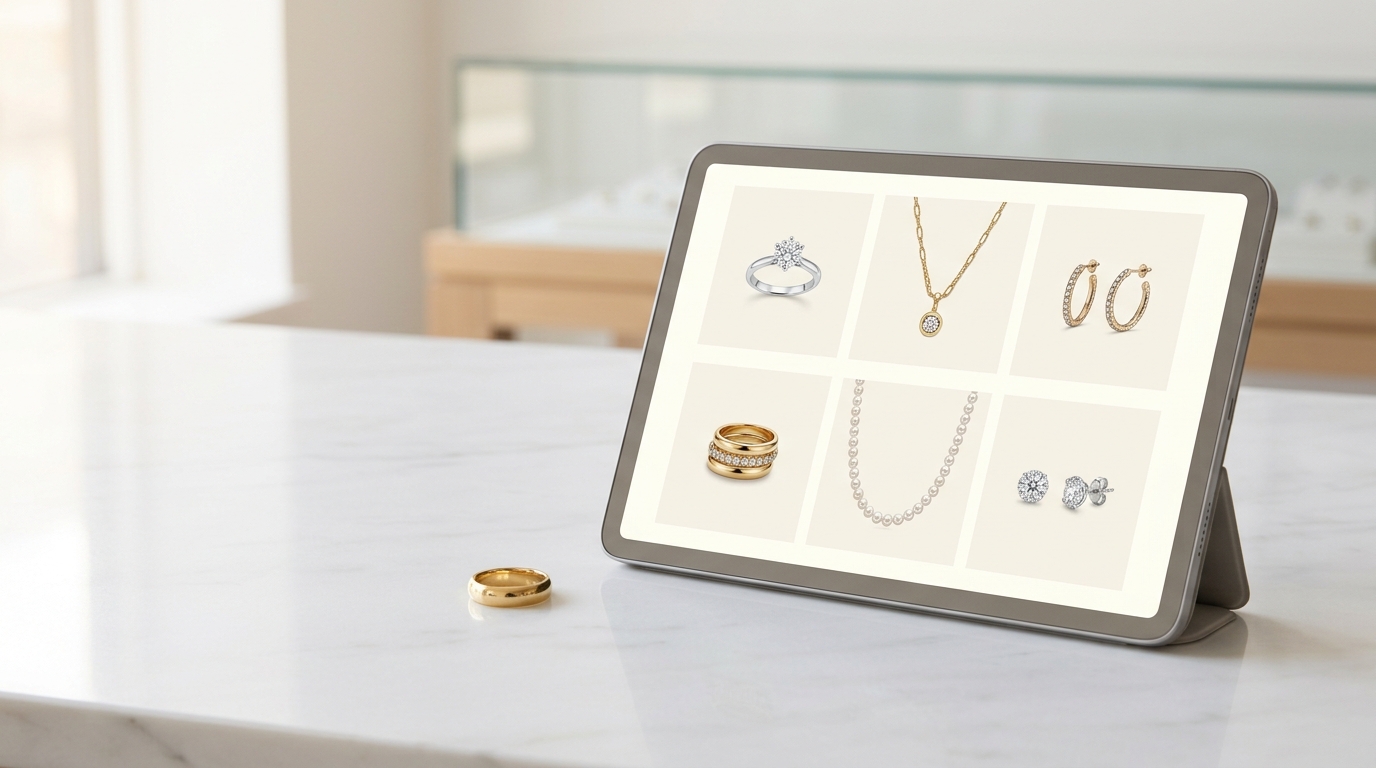
The client clicks the link and opens the Catalog in their browser. They see the full Deck presentation — your curated collection, laid out cleanly with whatever fields you've configured to show. Product titles, descriptions, pricing if you've chosen to include it, SKUs if relevant. They do not need a Studio account. They do not need to download anything.
Each link is independently named and independently revocable. If you've sent links to three buyers and one of them should no longer have access after a season closes, you revoke their specific link. The other two remain active and unaffected.
Annotation feedback directly on designs
Here is where the workflow difference becomes most significant. Clients or collaborators who access a Catalog via an external link can add annotation feedback directly on the designs.
They draw on the image — circling the stone, marking the band — and leave a comment attached to that mark. "Can this be rose gold instead?" with an arrow pointing directly at the metal in question. No ambiguity about which piece, no ambiguity about which part of it.
That feedback lands in your Studio Activity Feed immediately. The Activity tab in the Catalog consolidates every annotation comment across every project in the collection into a single chronological timeline. You open it the next morning and see every piece of client feedback, each one linked directly to the specific image and the specific region they were commenting on.
No email thread to untangle. No guesswork about which image they meant. The feedback is attached to the pixel.
Project-level sharing for individual designs
For sharing a single design rather than a full collection, individual projects support the same sharing model. Set a project's visibility to Public and anyone with the link can view it without a Studio account. Or generate a token link for a specific external person — they get view access to that project and can add annotations. The token link can be revoked independently without changing the project's visibility for anyone else.
This is useful during the active design phase, before a piece has been added to a catalog. You share a project link for a specific ring the client commissioned, they annotate directly on the image, you revise, and the thread stays in one place for the life of the project.
Named collaborators for team members
For internal team members and trusted external partners who do have Studio accounts, the access model is more granular. Every project and Catalog can have named collaborators added by email — either as Editors with full editing rights or as Viewers with read-only access.
Named collaborators see the project or Catalog in their own Studio library under Shared with Me. They get annotation notifications, they can follow the Activity Feed, and they can be @mentioned in comments. This is the right level of access for a client's in-house designer who needs to stay closely involved, or for a production partner reviewing specifications.
The native share sheet
On supported browsers and mobile devices, a native OS share dialog can be triggered from any project's File menu. This lets you forward the current project link via any installed app — WhatsApp, iMessage, email — with a single tap. For teams doing most of their client communication over messaging rather than email, this closes the last gap between generating a design and getting it in front of the right person.
What this looks like in practice
A realistic workflow for a collection review: curate the approved designs into a Catalog, configure the Deck to show titles and pricing with a single product per slide, generate a named link for the buyer, send it in WhatsApp with a short note. The buyer opens it on their phone during their commute, annotates two pieces with specific comments, and by the time you're at your desk the next morning their feedback is waiting in your Activity Feed — attached to the exact designs and the exact details they were responding to.
No email attachment. No ZIP file. No follow-up call to ask which image they meant. Just the feedback, on the pixel, ready to act on.