
How to Give Clients a Self-Serve Jewelry Configurator on Your Website
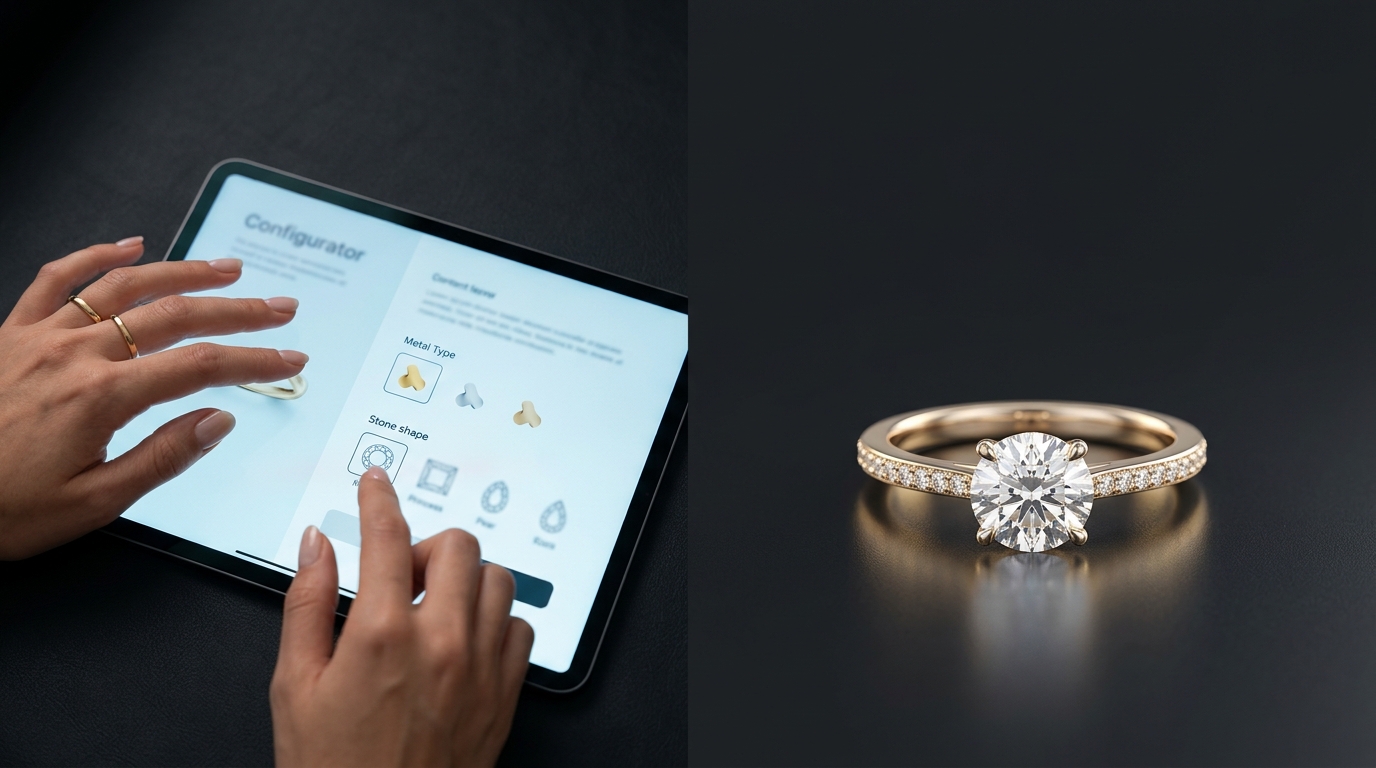
Most jewelry websites have the same problem: a "Custom Orders" page with a contact form, an email address, and a note that says "get in touch." That's it. The client has no idea what the process looks like, what options exist, or what they'll actually get — so a big chunk of them bounce before they ever reach out.
A jewelry product configurator changes that dynamic entirely. Instead of asking clients to imagine the possibilities, you show them. They pick a metal, choose a stone shape, and see an AI-generated preview of their ring in seconds. No studio visit required. No long email thread before the first visual.
Diatech Studio's Flow mini app is built exactly for this. It's a focused, embeddable design workspace you can drop into your existing website via iframe — and clients can use it without ever creating a Studio account.
What a Jewelry Product Configurator Built on Flow Actually Looks Like
Flow opens as a two-panel layout. On the left, a sidebar shows your reference images alongside quick-select controls for metal type (White Gold, Yellow Gold, or Rose Gold) and center stone shape. On the right, the design canvas. That's the whole interface.
There's no toolbar, no project library, no settings menu. Just the choices that matter for a client's decision and the AI output they care about.
When a client picks Yellow Gold and an oval stone, Studio automatically constructs the right prompt in the background and submits it. They don't have to write anything. If they want to add more detail, there's a text field for that too — but for most clients, the quick-select options alone are enough to get a useful first result.
Up to five reference images can be selected simultaneously to guide the generation. So if you have three house styles that pair well with an oval stone, a client can select all three as references and see a result that draws from each one.
Featured Changes: The One-Tap Shortcut Layer
One of the more practical parts of Flow is something called Featured Changes buttons. These are configurable one-tap shortcuts that appear above the prompt field for commonly requested modifications.
Say 80% of your custom requests involve the same three variations — "add a hidden halo," "make the band thinner," "try it in rose gold." Instead of hoping clients type those words correctly, you surface them as buttons. One tap, the modification is queued and submitted. No prompt writing required.
This is where the configurator stops feeling like a generic tool and starts feeling like something built for how your specific clients actually shop.
Pricing Context, Right in the Sidebar
If you've entered pricing data for a reference design in Studio, Flow shows it. Each reference image in the sidebar displays its SKU, metal weight, diamond weight, and price — right alongside the selection controls.
That context matters. A client who sees "1.8g 18k Yellow Gold — 0.5ct diamond — est. $3,200" next to a reference image is making a much more informed selection than one who's just choosing a metal color from a dropdown. It reduces the "how much will this cost?" question before it's even asked.
Client Access Without a Studio Account
Here's the part that makes Flow practical for client-facing use: the people using it don't need Studio accounts.
You share access via an external token link. Clients click the link, land on the configurator, and start working. From their side, it looks like part of your website. They never see the Studio interface, never create a login, never deal with a sign-up form.
On your end, you can revoke that link at any time. If the project is done, or if the link goes to the wrong person, you pull it.
For retailers or brands who want to go further, Flow can be embedded directly into a third-party site via iframe. The same configurator, living inside your existing product page — no redirect, no separate tab.
A Realistic Use Case
Here's how this looks for a mid-size custom jeweler:
You're presenting three ring styles for an upcoming collection. Instead of sending a PDF with flat renders, you send each client a Flow link tied to a Studio project containing those three styles as reference images.
The client opens it from their phone. They tap "Rose Gold," select an oval stone, tap the "Add halo" Featured Changes button, and hit Generate. Thirty seconds later, they're looking at a photorealistic render of their preferred configuration. They can try a few more combinations without involving you at all.
When they're ready to discuss seriously, they already know what they want. The consultation starts at a completely different point.
How to Set It Up
From within Studio, open any project and navigate to the Flow mini app from the Apps section. The project you're viewing becomes the basis for the configurator — its reference images populate the sidebar automatically.
Set your Featured Changes buttons for the modifications your clients most often request. Add pricing data to any reference images you want to show with cost context. Then generate an external token link and share it, or copy the iframe embed code and drop it into your website.
The setup is lighter than it sounds. Most of the configuration work is just making sure the right projects and reference images are in place — which you've probably already done for your internal workflow.
The Gap a Jewelry Product Configurator Closes
Custom jewelry configurators have historically been either too expensive to build (custom software, custom 3D models, ongoing maintenance) or too generic to be useful (pick-a-shape dropdowns that look like they were built in 2009).
Flow sits between those. It's not a full custom build, so there's no development cost or long lead time. But it's not generic either — it uses your actual designs, your actual pricing data, and generates AI output trained on your specific references.
The result is a configurator that actually reflects how your studio works, not a demo reel for someone else's software.
If you want to try it, the Flow mini app is available from the Apps section inside Studio. Start with one project, set up a token link, and send it to your next client before the consultation call. That's the fastest way to see whether it changes the conversation.