
Jewelry Product Descriptions With AI: Generate Copy That's Ready for Your Product Page
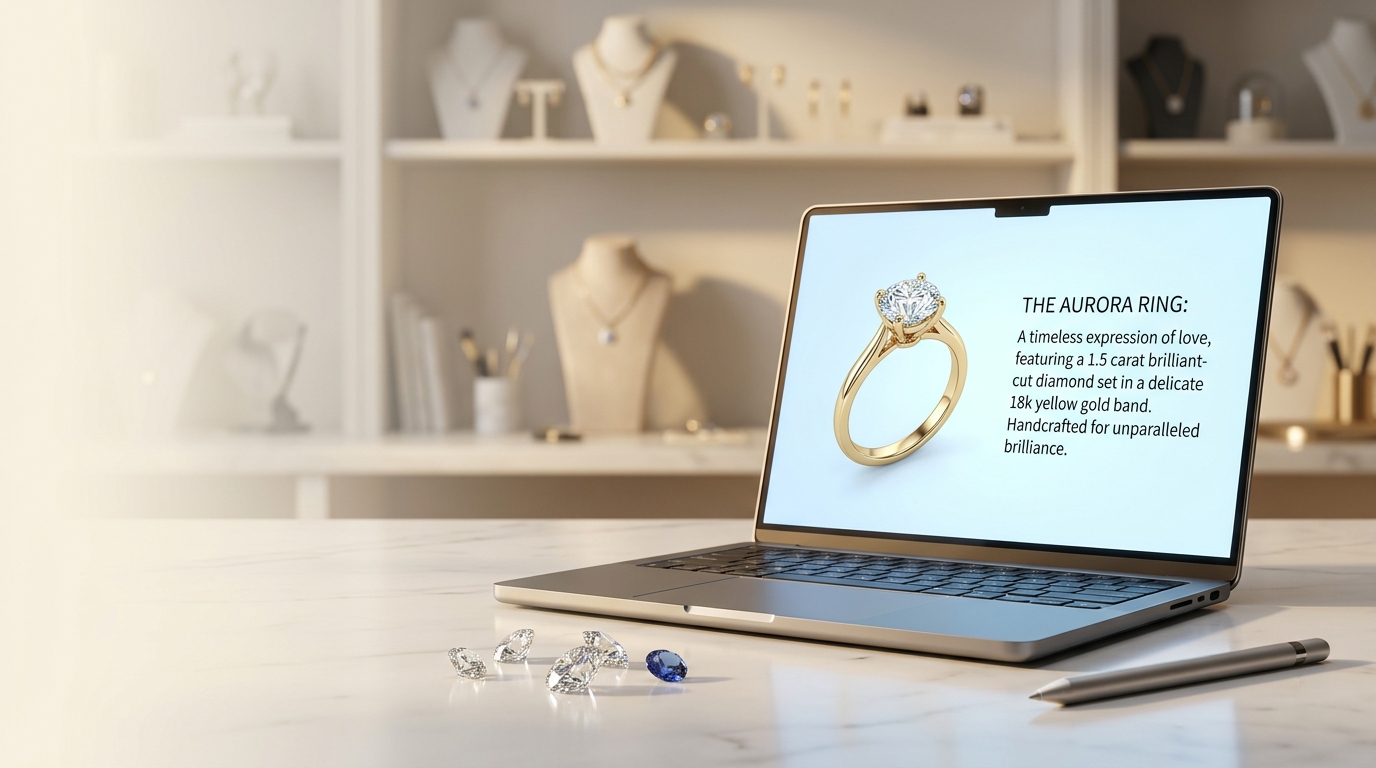
Writing jewelry product descriptions is one of those tasks that takes far longer than it should. You know the piece — you designed it — but translating what you see into clean copy for a product page, a catalog slide, or a wholesale line sheet is its own kind of work. The language has to be specific enough to mean something and simple enough to convert.
Studio's Generate Copy tool reads the design image you're working with and produces three things: a product title, a full description, and a set of bullet-point selling points. The whole thing takes about ten seconds.
What Generate Copy actually does
It's not a template filler. The tool analyzes the visual content of the image — stone shape, setting style, metal tone, design character — and writes copy that describes what it actually sees. A round-cut solitaire in yellow gold gets different output than a pear-cut three-stone piece in white gold, because the model is reading the image, not filling blanks.
If you've already entered pricing data for the design, that information travels into the generation context too. The description might note diamond weight or metal type when those values are confirmed in the pricing panel, which saves you from adding specs manually afterward.
The output lands in a dedicated Update Copy panel in the sidebar. You can review it, edit any field, and save. The copy is stored against that specific design variation — it's there when you come back, and it gets pulled into catalog slides and presentation decks when that data is toggled on.
How to run it
Open a project with a design you want to describe. Go to the Manage menu in the toolbar and select Generate Copy. The tool runs on whichever variation is currently selected on the canvas.
One thing worth knowing: this works on uploaded photos and imports, not just AI-generated renders. If you brought in a photograph of an existing piece, Generate Copy will write from that image exactly the same way.
How much editing do you actually need?
Honest answer: usually some. The generated copy is accurate and clean, but it doesn't know your brand voice, your customer, or what you want to emphasize. A description of a pavé band might correctly mention diamond accent detailing but not use the specific terminology your brand favors. It won't know if a piece is part of a named collection unless that context lives in your Project-Level Instructions.
The most common edits tend to be:
- Adjusting tone (more casual vs. more formal)
- Adding collection names or campaign language
- Swapping vague phrases for your specific descriptors ("warm gold" vs. "18k yellow gold")
- Shortening the selling points for character limits on product pages
Most of the time you're editing 20–30% of the output rather than rewriting from scratch. For a business producing hundreds of SKUs a month, that translates into a significant time saving.
Using the Update Copy panel
After the initial generation, the Update Copy panel is your editing workspace. Title, description, and selling points are all editable inline. Changes save explicitly — nothing is lost if you navigate to a different variation before saving.
The panel is also accessible independently of running the generation. If you want to go back and refine copy you wrote weeks ago, open the project, select the variation, and the Update Copy panel shows what's stored. No need to re-run the tool.
Your Jewelry Product Descriptions in Catalogs and Presentations
When you build a catalog deck, the Configurable Slide Fields option lets you choose what appears on each slide. Product title and description are both available as toggleable fields. If you've run Generate Copy on your variations, those values populate automatically — no re-entering.
This is practical for wholesale presentations where buyers expect specs alongside the image. Run Generate Copy across your SKUs before building the deck and the slide content is ready.
A few things it won't do
Generate Copy writes about the visual design. It doesn't know your retail markup, your lead time, or your return policy. It also won't produce SEO-optimized product page copy by default — the output gives you a solid draft, but if ranking on Google is the goal, you'd want to layer in keyword strategy yourself.
It doesn't currently run across multiple SKUs in a single batch from the canvas. For a large catalog, you can run it variation by variation, or use Bulk CSV Jobs: selecting "Copy Generation" as the job type when uploading your SKU sheet will process an entire list overnight and link each output back to its project.
When to Add Jewelry Product Descriptions to Your Workflow
Generate Copy is most useful when you're moving from design approval into catalog prep, client presentation, or product listing. The gap between "design approved" and "listing live" is often a writing bottleneck — a dozen descriptions to write, each one eating time that could go elsewhere.
If your team uses the annotation and approval workflow, adding a step where the description is generated and reviewed before sign-off keeps everything in one place. The reviewer can check the copy alongside the design, leave a comment if something needs changing, and the edit happens in the same tool — no switching systems.
For studios that ship regularly, it's worth treating Generate Copy as part of the standard handoff step rather than optional cleanup at the end.