
How to Use Pinterest Boards as AI Jewelry Design References
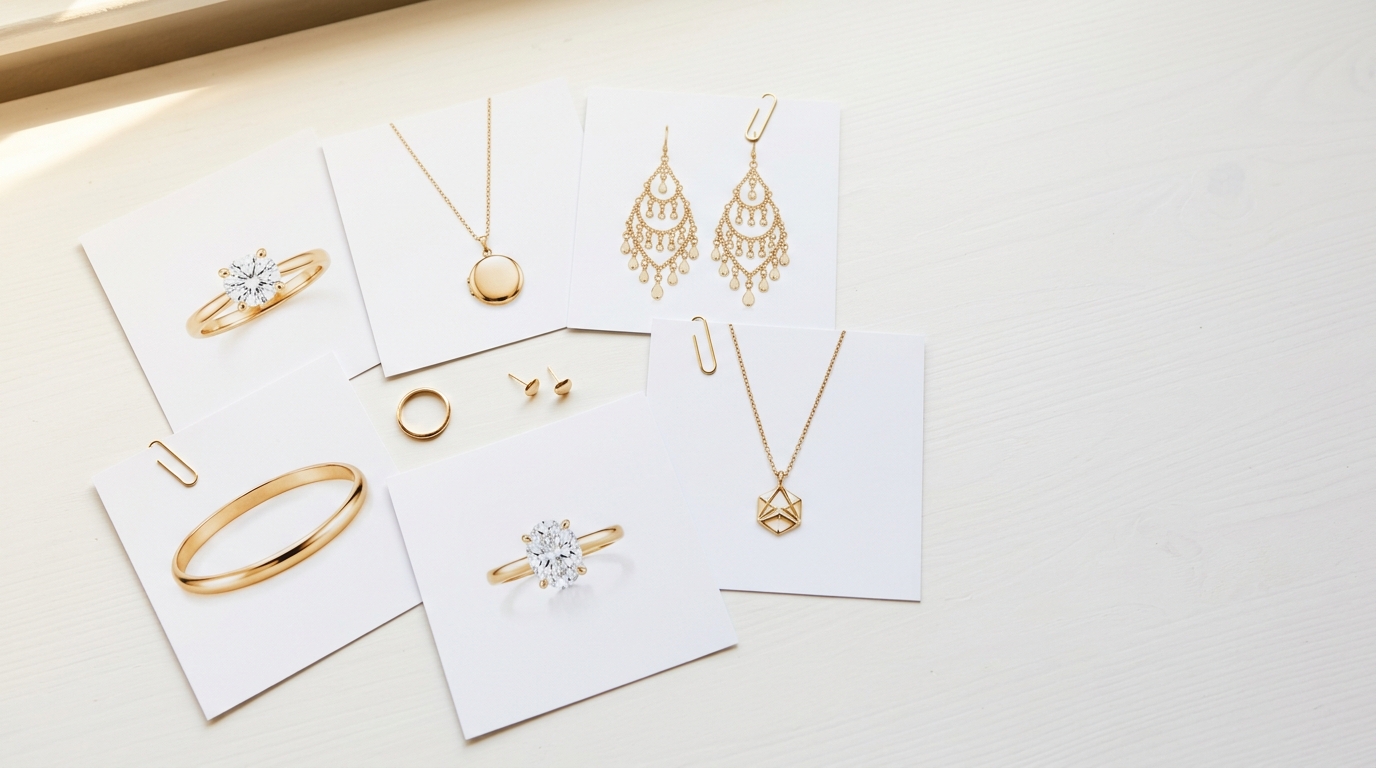
If you design jewelry professionally, you almost certainly have a Pinterest account. Probably several boards — one for each client's taste, one for trend tracking, maybe a few organized by metal or stone type. It's where designers have been collecting visual inspiration for years, and for good reason. The platform is genuinely excellent for building visual libraries.
The friction has always been getting that inspiration into your actual workflow. You find a board full of relevant references, and then you're downloading images one by one, renaming files, uploading them individually into your design tool. By the time you've done this for twenty pins, you've spent more time on logistics than on designing.
Studio's Pinterest import removes that step entirely.
How the import works
Connect your Pinterest account from the File menu inside any project. Once connected, you can browse your boards directly from within Studio — you don't need to switch tabs or copy URLs.
Select any board, and Studio imports all its pinned images directly into the current project as design variations. The entire board lands in your project in a single action.
From that point the images behave like any other asset in your project. You can use them as reference images for AI generation, view them in the moodboard canvas alongside your AI-generated designs, annotate them for team discussion, or simply keep them as visual context while you work.
Using imported pins as generation references
The most direct use is selecting an imported pin as a reference image for a generation run. Choose the pin, select your AI tool — Auto, Variation, or Pose — and the generation uses that image as a visual starting point.
This is particularly useful when a client has sent you a Pinterest board link rather than a written brief. Instead of trying to translate their visual preferences into words, you import the board, pick the two or three pins that best represent what they're after, and use them directly as references. The AI reads the visual language — proportions, stone type, overall aesthetic — and generates from it.
You can also tag a project in a prompt using the @ symbol. So if you've imported a client's inspiration board into its own project, you can @ that project from any other project's prompt bar, and Studio passes its visual content as reference context to the AI automatically. The inspiration board becomes a persistent style reference that any generation in any project can draw from.
Combining Pinterest imports with the moodboard canvas
Once your pins are imported, switching the project to Moodboard view gives you a free-form canvas where you can arrange the imported images alongside your AI-generated designs.
This is the closest Studio equivalent to what people are actually doing when they use Pinterest — pulling together visual references to think through a design direction. The difference is that your reference images and your AI-generated concepts are in the same canvas, and any of the images can become a generation input without leaving the workspace.
You can resize and reposition pins on the canvas, crop them to focus on a specific detail, and use the side-by-side arrangement to compare a client's reference pin against your generated interpretation. When a team member joins the project, they see the full canvas — the inspiration and the work-in-progress together.
When to import versus using images directly
Pinterest import is the right approach when you're working from a curated board that already exists — a client has shared one, or you've been building one over time for a specific project or collection.
For one-off reference images, the faster path is usually dragging an image directly onto the canvas or pasting a URL. Studio accepts both. You can paste an image URL from any source directly into the workspace and it imports as a variation without any account connection required.
The Pinterest integration adds the most value when the reference collection is large and already organized. Importing fifty pins from a carefully curated board in one action, versus downloading and uploading them individually, is where the time saving becomes significant.
A note on using reference images responsibly
Pinterest pins link back to their original sources, and the images on Pinterest belong to their original creators. Using imported pins as direct visual references for AI generation — to understand a client's taste, explore a design direction, or inform your creative process — is standard industry practice.
Generating outputs that are direct copies of a specific competitor's design is a different matter. The import feature is built for inspiration and reference, not reproduction. The AI interprets and reinterprets visual input rather than copying it pixel-for-pixel, but it's worth being deliberate about what you're asking it to do with reference material.
Used as intended — to give the AI context for a client's aesthetic preferences rather than to replicate a specific piece — Pinterest boards are one of the most efficient ways to go from "here's what the client likes" to "here's a generated starting point" without a single written brief.