
When AI Gets It Wrong: Meet the Self-Healing Prompt Workflow
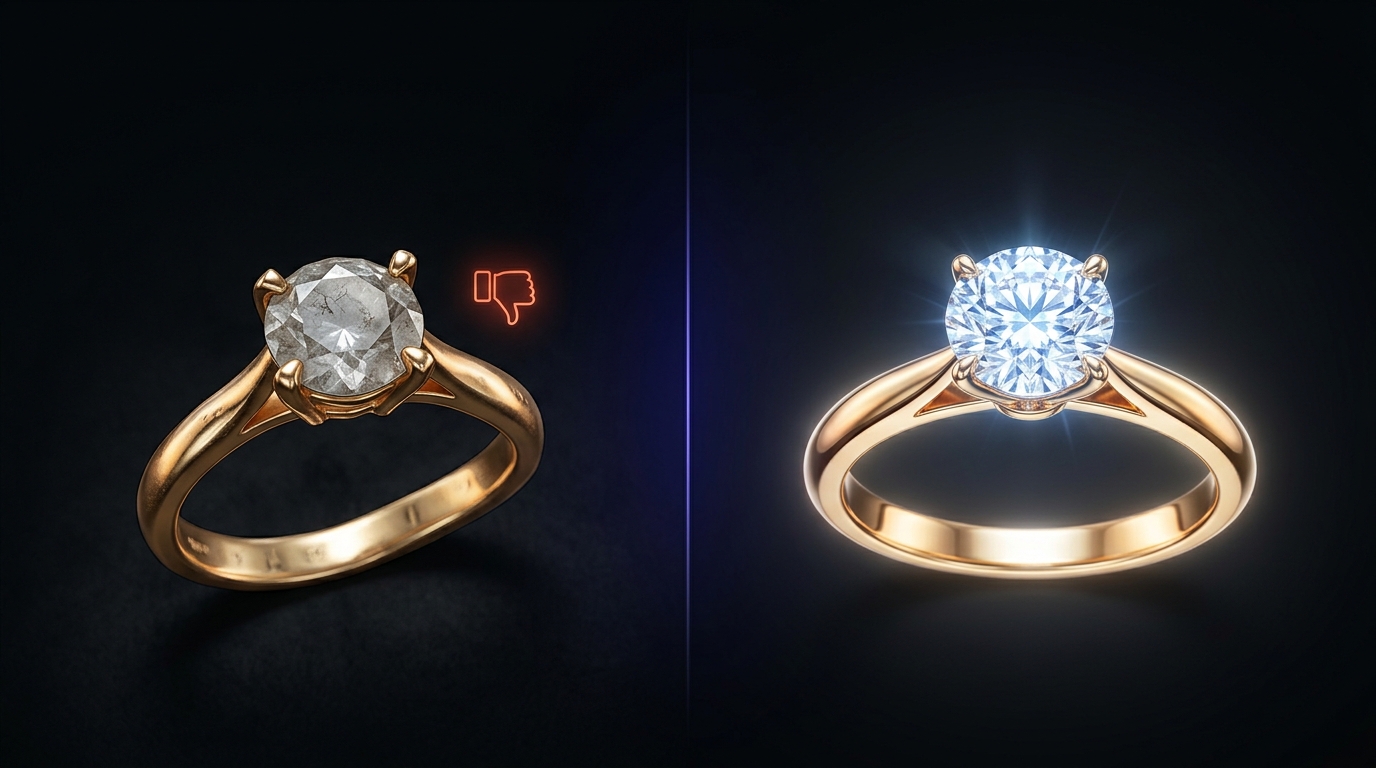
You've been there. You type a prompt, hit generate, and the AI spits out something that's almost right. The stone is the wrong cut. The metal color is off. The setting is too ornate. So you tweak the prompt a little, generate again, and the result is... different, but still not what you had in your head.
This loop is one of the most frustrating parts of working with AI image generation. And for jewelry design specifically, where precision is everything, it compounds fast.
Today we're shipping something that breaks that loop for good.
What actually goes wrong
When a generation misses, the problem usually isn't the AI. It's that the gap between what you imagined and what the AI produced never got described clearly enough. You saw the result, you felt what was wrong, but translating that into a better prompt is genuinely hard work — especially if you're not used to writing for image models.
So most people do one of two things: write a longer prompt and hope for the best, or give up and start from scratch. Neither works reliably.
Just tell it what was wrong
Here's how it works now.
When you dislike an image in Studio, a panel opens automatically. On the left, you see the generated output. On the right, the reference images you used. Below that, the original prompt.
There's one text box: What went wrong?
You can type it out, or just tap the mic and say it out loud. "The center stone is round, it should be pear-cut." "The band is way too thick." "I wanted rose gold, not yellow." Whatever it is — be blunt, be casual, no need to phrase it like a prompt.
Hit submit, and Studio synthesizes everything into a new, corrected prompt. You see it before anything generates. If it looks right, hit Accept — and it fills straight into your prompt box, ready to go.
No copy-pasting. No starting over. No guessing what to change.
The part that makes it stick
What makes this genuinely useful over time is the compounding effect.
Every dislike becomes signal. Every piece of feedback makes the next attempt more targeted. You're not spinning the wheel — you're steering. And because the refined prompt comes back to you as plain editable text, you stay in control. Tweak it further, run it as-is, or save it for another project entirely.
Over a real design session, this turns frustration into momentum. A generation that used to mean starting over now means one more step toward exactly what you had in mind.
Try it on purpose
If you've been settling for "close enough" because fixing a bad result felt like too much work, this changes that calculation.
Dislike an image. Tell it what was off. See what it comes back with.
We think you'll be surprised how quickly it gets there.