
Three Ways to Search Your Jewelry Design Library: Keywords, Natural Language, and Reverse Image Search
Every design library hits a wall at some point. When you have twenty projects, finding anything is easy. When you have two hundred, you start spending real time on searches that should take seconds. When you hit a thousand, keyword search alone stops being enough.
Diatech Studio has three distinct search modes, each suited to a different kind of lookup. Knowing which one to reach for — and when — turns a large library from a navigation problem into an actual asset.
Keyword search: the default, and when it works best
Keyword search is the default mode and the fastest for direct lookups. Type a SKU, a project title, a tag, or a material type, and results update in real time as you type.
It works best when you know something specific about what you're looking for. You remember the SKU. You know the client name is in the title. You tagged it "eternity" or "baguette" at creation time. Keyword search finds it instantly.
The limitation is that it requires you to have the right words. If a project wasn't tagged, or was titled something ambiguous, or you simply can't remember what you called it — keyword search gives you nothing useful.
Natural language search: describe what you remember
Switch to Natural mode in the search sidebar and the behaviour changes. Instead of matching exact words, the AI interprets your query semantically and finds projects that match the intent.
You can type things like "delicate rose gold ring with a pear stone and a twisted band" and the AI finds projects that fit that description — even if none of those words appear in the project title or tags. It understands that "twisted band" and "braided shank" describe the same thing. It knows that "pear stone" and "teardrop diamond" are equivalent.
This is the right mode when you're looking for a design direction rather than a specific known project. You remember roughly what the piece looked like. You might not remember anything else about it. Natural language search bridges that gap.
Voice search extends this further. In Natural mode, tapping the microphone button lets you dictate the query rather than type it. The speech is transcribed and submitted automatically. For designers who work quickly or are on a mobile device, this removes the typing step entirely — you describe the piece you're looking for out loud and the results appear.
Visual similarity search: find designs that look like this
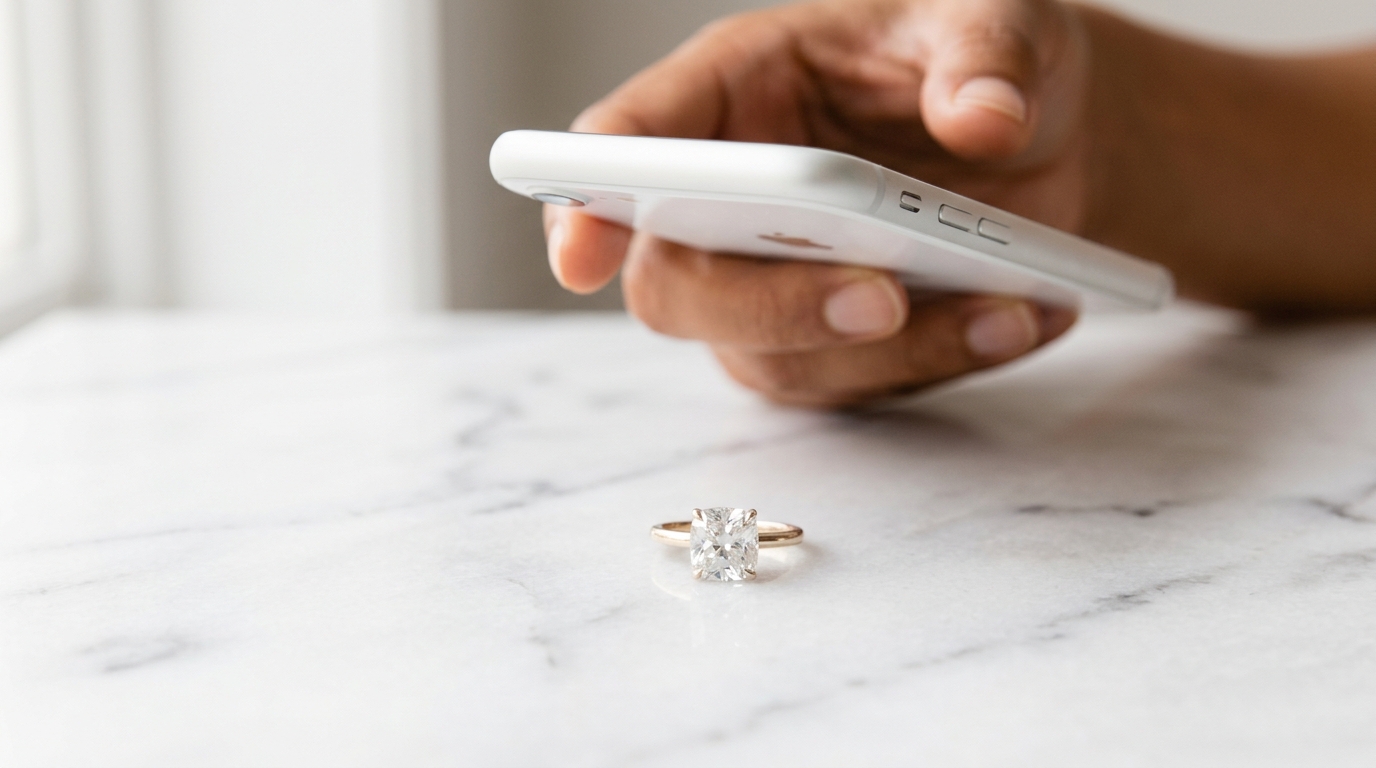
The third mode is Image search — Studio's reverse image search. Upload or drag in any photo and the system searches the library for projects that are visually similar to it.
The source image can be anything. A photograph of a competitor's piece a client has sent you as a reference. A photo a client took at a market. A scan of a sketch. A screenshot from a brand's website. A photograph of a physical piece in your own stock. You upload it, and Studio finds the designs in your library that most closely resemble it visually.
This is the mode that tends to surprise people the most, because the matching actually works well. It operates on visual features — shape, proportions, stone layout, overall form — not on text. A cushion halo ring finds other cushion halo rings even if none of them are tagged "cushion halo." An organic freeform cuff finds similar organic pieces even if the design language was never described in writing.
Where reverse image search becomes genuinely useful
The most powerful use case for visual similarity search is client brief interpretation. A client comes in with a photograph of a ring they saw on a trip. They can describe it roughly, but the real reference is the image. You upload the photo, run visual similarity search, and Studio shows you which of your existing designs come closest — giving you a concrete starting point for the conversation rather than working from description alone.
It's also useful for collection coherence. If you're building a new line and want to make sure a piece fits stylistically, you can run a visual search from a draft design image and see what else in your library it resembles. If it's pulling up pieces from a completely different aesthetic, that's a useful signal before you invest further in the direction.
For studios that have large legacy catalogs — pieces designed years ago, not all consistently tagged — visual search is often the only practical way to find specific items. You pull up a similar piece, search from it, and let the visual matching surface what keyword search can't.
Combining search modes with filters
All three search modes work in combination with Studio's filter sidebar, which lets you narrow results by jewelry category, stone shape, metal type and purity, diamond and metal weight ranges, price range, and active or archived status.
So you might run a natural language search for "vintage-inspired sapphire necklace," then filter to only show projects in a specific price range with a specific metal type. Or run a visual similarity search from a reference image, then filter to only show pieces with emerald-cut stones.
The filters don't replace search — they narrow what the search has already found. The practical result is that you can get from a vague recollection or a client reference photo to a specific, filtered shortlist in a few steps, without scrolling through pages of thumbnails.
The Global Command Palette
One more search tool worth knowing: pressing Cmd+K (or Ctrl+K) from anywhere in Studio opens the Command Palette. This is a quick-jump overlay for navigating directly to any project, space, or catalog by name. It's keyboard-driven and instant — no mouse required.
For the day-to-day navigation between known projects, the Command Palette is faster than opening the library and running a search. It's worth building into your muscle memory if you work across a lot of projects simultaneously.
Making your library searchable
All three search modes work better when projects are set up well. A few things that help significantly: consistent tagging at creation time (stone shape, metal type, collection name), meaningful project titles rather than numbered codes, and keeping the AI-generated description and keyword tags in the Project Info panel up to date.
Visual similarity search doesn't need any of this — it works on the images themselves. But for keyword and natural language search, the richness of the metadata you've added determines how findable a project is months or years later.
The library you build today is only as useful as how well you can navigate it in the future. These three search modes give you the tools to find anything. The metadata habits you build now determine whether those tools can actually do their job.