
How to Use Voice Prompts for Jewelry Design
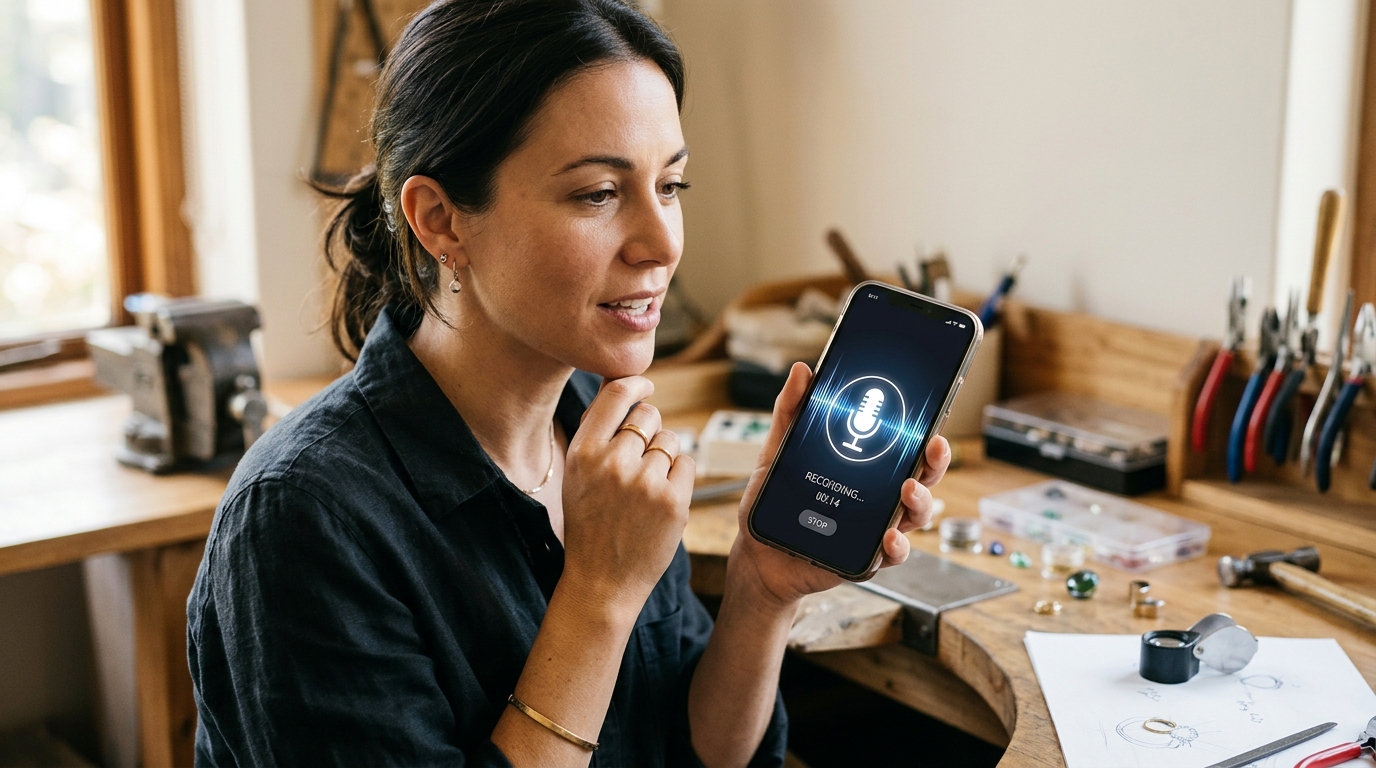
Most people think of AI jewelry design as a typing exercise. You sit down, craft a prompt, read the output, refine the words, try again. That works well. But there are moments in a design session when typing just slows you down. Your hands are busy. The idea is flowing faster than you can write it out. Or you're just more comfortable speaking than typing. That's what voice input in Studio is for.
There are three places voice input shows up, and each one serves a slightly different purpose.
Voice Prompts in the Design Workspace
The main workspace has a Voice Prompt Input feature built into the prompt bar. Tap the microphone icon, speak your design brief or edit instruction, and Studio transcribes it and drops the text into the prompt field ready to run. You can edit before submitting, but most of the time you won't need to.
You can record up to two minutes, which is way more than most prompts need. In practice, voice prompts tend to be longer and more descriptive than typed ones. That's usually a good thing. When you're speaking, you naturally include details you'd skip when typing. The feeling you want. The context that makes the brief make sense. The reference you have in mind but couldn't be bothered to fully write out.
A prompt like "I want a version of this with a more organic, slightly asymmetric feel, inspired by the art nouveau pieces we looked at last week, but in white gold, and I want the stone to feel like it's cradled rather than held" works better spoken than typed. You'd shorten it when typing. Spoken, the AI gets the full picture.
Transcription accuracy is solid for everyday speech. Jewelry-specific terms (stone cut names, setting styles) occasionally need a quick correction, but overall the workflow is smooth.
Voice Search in the Library
In the project library, Studio's Natural Language Search mode has a microphone button. Tap it, describe what you're looking for, and Studio runs the transcribed query against your whole design library.
This is great for when you remember a design visually but can't think of the exact keywords. "That rose gold oval ring we made for the spring collection, the one with the twisted band" is a search you'd never type but would absolutely say. Natural language search handles it just fine, and voice removes the keyboard entirely.
It's also much more practical on mobile. Typing a nuanced search query on a phone keyboard is a pain. Speaking it takes three seconds.
Voice Notes on WhatsApp
If you use Studio's WhatsApp integration, voice notes work as a first-class design input. Send a voice message to the Studio bot and it transcribes your speech and uses it as a prompt for your active project. Same as typing, except you never opened a browser.
This feels natural for anyone who already gravitates toward voice messages in their daily communication. You're on your phone, you have an idea, you send a voice note. Studio handles the rest.
The active project stays remembered for seven days, so you can carry an ongoing design conversation across multiple sessions without re-linking the project each time.
When Voice Actually Beats Typing
A few situations where speaking is the genuinely faster path:
Mid-review with verbal feedback. After a client call or an annotation session, you often have a clear verbal sense of what needs to change. Speak it immediately instead of translating it into written notes and then back into a prompt.
Narrative briefs. Voice works better when the direction is qualitative rather than technical. "It should feel like something from a Parisian antique shop, substantial, with a bit of history, not trying too hard" reads naturally when spoken. When you type something like that, you tend to trim it into something vaguer.
On mobile. Voice prompts combined with Studio's PWA or native app means you can generate designs on your phone without fighting a small keyboard. Speak the prompt, see the result, voice a refinement.
Hands occupied. If you're in a physical workshop holding a piece or working at the bench, being able to dictate a prompt without stopping what you're doing is a small but real advantage.
A Few Tips Before You Start
Speak naturally. Don't slow down or over-enunciate. The transcription handles normal conversational speech well and actually gets worse when you speak like you're dictating a legal document.
Say technical terms clearly and glance at the transcription before submitting. "Pavé" and "prong" come through reliably. More unusual terminology is worth a quick check before you hit run.
Use natural pauses instead of trying to get everything out in one breath. The transcription follows speech rhythm and formats into readable sentences on its own.
And if a voice prompt produces a result you like, copy that transcribed text into a snippet. You've essentially just created a reusable prompt by describing your idea out loud. Save it to the Snippet Library and you can pull it up again with one tap of autocomplete next time.