
From Flat Render to Real CAD: How AI Jewelry 3D Model Generation Works
Related: AI jewelry design·AI jewelry CAD export
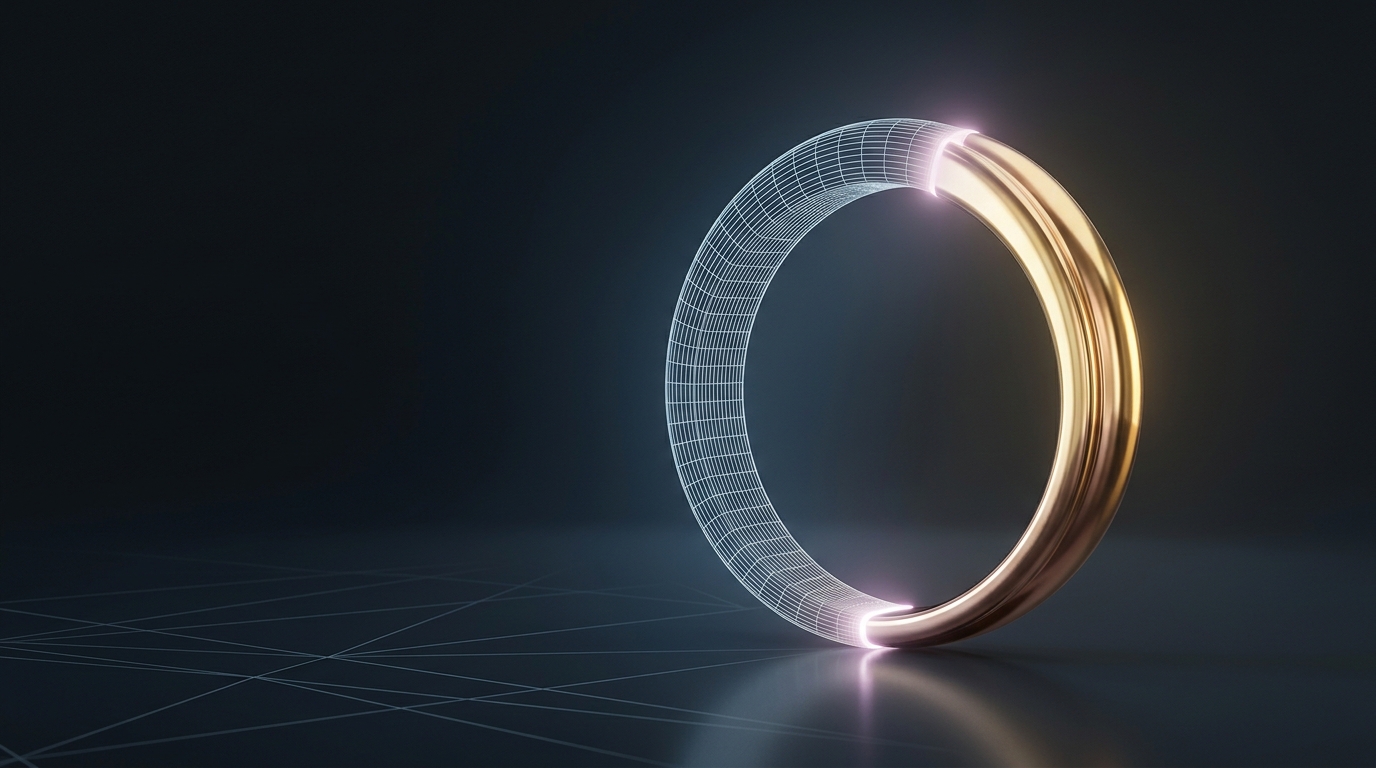
The render looks perfect. Rose gold, cathedral setting, oval stone sitting exactly where you imagined it. The client approves it on the spot.
Then they ask: "Can we get the file for the factory?"
That's where most AI jewelry design workflows hit a wall. The image is great. The CAD file doesn't exist. Someone has to hand the render to a CAD designer, brief them on what they're looking at, and wait a week for a model that may or may not match what was approved.
AI jewelry 3D model generation closes that gap. You generate the 3D model directly from the render, in the same platform, in the same project, without any handoff.
What the Tool Actually Produces
When you run 3D Model Generation on a design image in Diatech Studio, the AI builds a real mesh model: a GLB file with actual geometry that you can rotate, inspect, download, and open in downstream CAD tools or send to a manufacturer.
The output lands in your project as a new variation. A 3D viewer opens on the canvas so you can spin the model, check the geometry from every angle, and confirm proportions before anything leaves the platform.
This isn't a stylized render from a different camera position. It's a proper 3D file with surface geometry, ready for review. It won't replace a hand-modeled CAD file built to tight manufacturing tolerances, but for sample approvals, early-stage reviews, and 3D printing, it gets you much further, much faster.
Choosing the Right Complexity Level
Before you hit Generate, you pick a Complexity level: Moderate, High, or Very High.
Moderate is fast and works well for simpler designs. A plain solitaire, a thin band, a classic stud: these don't need Very High complexity, and you'll wait longer for output that doesn't look meaningfully different. High adds resolution to elements like prong tips, pavé coverage, and halo geometry. Very High is worth it on pieces with intricate detailing: milgrain edges, engraving patterns, multi-row pavé, or anything with tight surface ornament.
The practical approach: start at Moderate on your first run. If the output misses detail you care about, regenerate at High. Reserve Very High for pieces you know are complex. Jumping straight to Very High on every design just burns time.
Running AI Jewelry 3D Model Generation in Batch
Here's something that often surprises people: you can select multiple design images at once and generate CAD models for all of them in a single submission.
If you've run an Agent Mode batch and ended up with 15 ring variations for review, select all 15 and queue the 3D generation together. The job runs in the background. You keep working. When it finishes, all 15 models are in the project waiting for you.
For collection teams and wholesalers, this is where the time savings really stack up. Moving from 20 approved flat renders to 20 inspectable 3D models without touching each one individually changes what's possible in a production week.
What to Check in the 3D Viewer
The viewer that opens when you select a 3D model variation gives you real controls, not just a spin button.
Camera position, rotation, field of view, and focus depth are all adjustable. Lighting direction, intensity, and color can be changed to catch surface issues that a default render hides. Per-mesh material assignments let you set diamond surfaces and metal surfaces independently. And the Angle menu has one-click snap buttons for Isometric, Side, Front, Top, and Back views, which are the standard reference positions a manufacturer will expect.
The metal finish control is worth using during review. Switching from glossy to matte surface tends to expose geometry irregularities that high reflectivity conceals. Running through the preset angle snaps systematically (front, side, back, top) before signing off takes about 30 seconds and catches most of the obvious issues.
Clean CAD: One Step Before Export
AI-generated meshes can be irregular. The triangle layout may be noisy, the surface topology may not be what a CAD tool or slicer expects, and the file size can be larger than it needs to be.
Studio's Clean CAD tool runs a mesh optimization pass directly in the platform. It rebuilds the surface using straight, symmetrical triangles, reduces geometric complexity, and produces a cleaner, lighter file without changing the form. It's one click, and it's worth running before you download anything destined for a factory or for import into external CAD software.
When This Workflow Makes Sense
AI jewelry 3D model generation is an Enterprise plan feature, which tells you something about the use cases it's designed for. The clearest ones:
Sample approval rounds. Send a 3D file to your factory for a first sample without waiting on a CAD designer's interpretation. The manufacturer gets enough geometry to flag production concerns and estimate difficulty early, before any tooling decisions are made.
Client presentations. Some clients want to see the piece from multiple angles before signing off. Handing them an interactive 3D model they can rotate on their phone is more convincing than a set of flat renders, and it takes less back-and-forth to reach approval.
Collection pipeline velocity. When you're generating a seasonal line with 50 SKUs, building traditional CAD for every design before you know which ones survive the edit wastes time. AI-generated 3D models as proxies keep the pipeline moving. Full CAD only gets built for pieces that make the final cut.
The situations that need care: designs with tight manufacturing tolerances, anything requiring a precise pre-calculated metal weight, or pieces going directly to casting without a manufacturing review step. The AI model gives you geometry, not a dimensioned technical drawing.
Starting Your First Generation
In any project workspace, select a flat design image and open the Design menu. You'll find 3D Model Generation there. Pick your complexity level and run it. The job processes in the background while you keep working.
When the model appears in your Variations panel, click it to open the viewer. Spin it, check the geometry from the standard angles, run Clean CAD if the mesh looks rough, then download in GLB, STL, or GLTF depending on what your manufacturer or downstream tool needs.
If you're on Enterprise and haven't tried this yet, run it on a few existing renders from different design categories before you're on a deadline. Some piece types produce cleaner results than others, and knowing which ones work well for your typical work is worth finding out early.
Related: AI jewelry design·AI jewelry CAD export