
AI Jewelry Collection Design: How to Generate 20 Pieces From a Single Brief
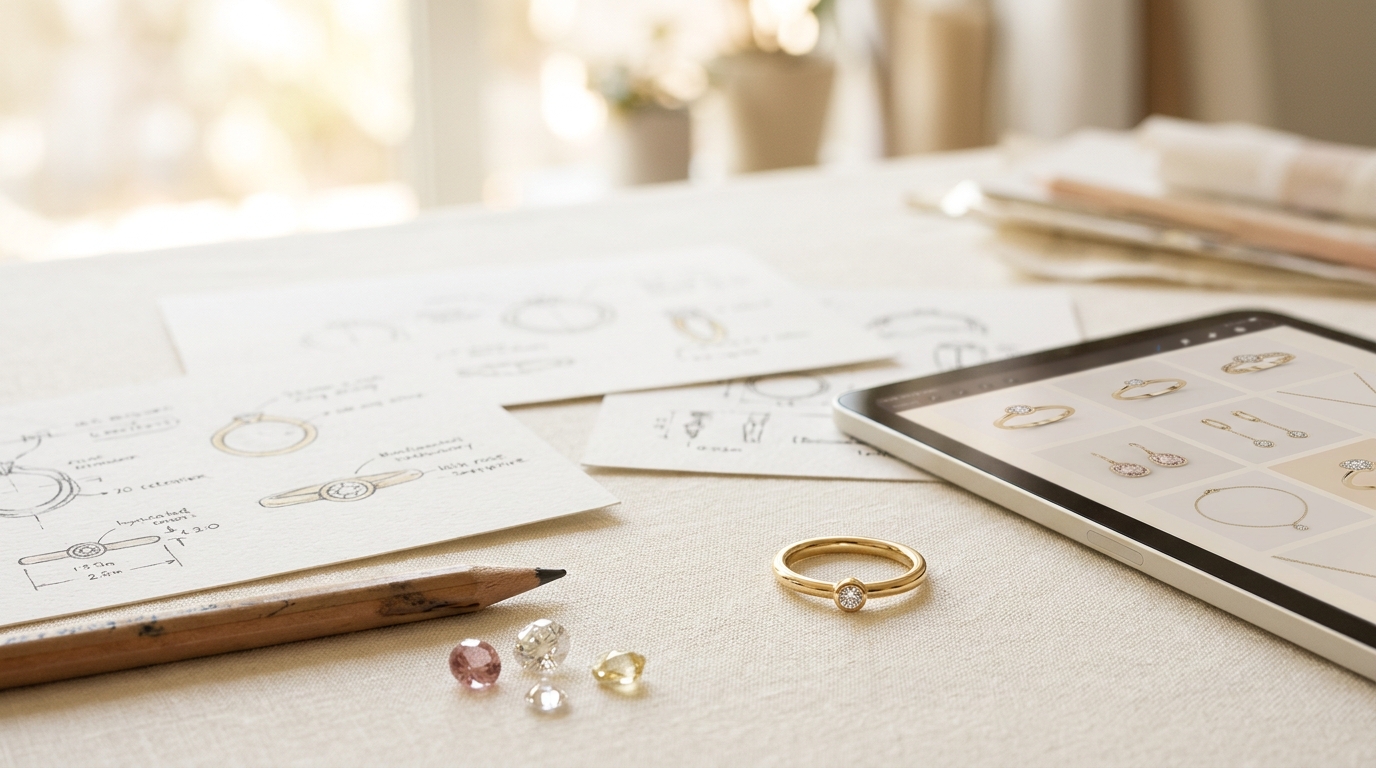
Most designers build jewelry collections the same way: generate one piece, review it, tweak the prompt, generate another, notice it drifted from the first, go back and fix it. By the time you have ten cohesive pieces, you've spent hours and a lot of credits chasing consistency.
AI jewelry collection design in Studio's Agent Mode works differently. You write one brief, set your category and count, and the AI generates a complete batch plan — every prompt and reference image mapped out before anything is actually generated. You review and edit the plan, then trigger only the pieces you want. That's the whole workflow.
Here's how it actually looks.
What Agent Mode Is (and What It Isn't)
Agent Mode isn't the same as the Bulk CSV tool. CSV jobs are for operations teams running hundreds of SKUs from a spreadsheet. Agent Mode is for designers: you describe a collection direction in plain language, pick a jewelry category, say how many variations you want (anywhere from 1 to 20), and the AI handles the rest.
Think of it as the difference between writing every prompt yourself and having a creative assistant draft the prompts for you, then reviewing them before anything runs.
The key feature that makes this actually useful is the Dry Run option.
Why Dry Run Changes Everything
When you enable Dry Run, Agent Mode doesn't generate any designs. Instead, it produces a preview table showing exactly what it planned to do — the prompt it would use for each variation, the reference image it would pull in, and the creative angle for that piece.
You can look at variation 3 and think "that's too similar to variation 1" and edit the prompt right there. You can uncheck the three pieces that don't fit the direction you're going and only generate the ones you want. You can change the reference image for one item without touching the others.
Only when you're happy with the plan do you click Generate. At that point, you've already made the creative decisions — the AI is just executing them.
For anyone who's ever burned through a batch of credits generating fifteen pieces and ended up with four usable ones, this matters.
How to Set Up a Collection Brief That Works
The quality of your batch comes down to the brief. A good brief for AI jewelry collection design covers three things: the aesthetic direction, the constraints, and the category.
Aesthetic direction is the feel of the collection — not a list of features, but the world the pieces live in. "Art Deco revival with modern proportions, rose gold, geometric millgrain borders" gives the AI much more to work with than "art deco rings." Describe the customer, the occasion, the mood if it helps.
Constraints are the non-negotiables: metal color, stone shape, whether pieces should feel cohesive or deliberately varied, any brand guidelines baked into your Project-Level Instructions. If you have a project with instructions already set, Agent Mode picks those up automatically — you don't have to repeat them in the brief.
Category is the jewelry type you're generating — rings, earrings, pendants, and so on. Agent Mode uses this to weight the generation toward appropriate proportions, settings, and conventional forms for that category.
Reviewing the Dry Run Output
After Dry Run runs, you'll see a table with a row for each planned variation. Each row shows the prompt the agent drafted and the reference image it chose. This is where you do your editorial work.
A few things to look for:
- Prompts that are too similar to each other. The AI sometimes clusters around a few ideas when you push it toward higher variation counts. Edit or delete the duplicates before generating.
- Reference images that don't match the direction. If the agent pulled in a reference that's too ornate or too minimal for what you want, swap it out for another image from your library.
- Variations that solve problems you didn't ask for. This is rarer, but sometimes the AI drafts a prompt for a style you hadn't considered and it's actually interesting. Keep those.
Once you've edited the plan, uncheck any rows you want to skip and hit Generate. Only the checked variations run.
After Generation: Keeping the Collection Coherent
Agent Mode generates all variations in the background as a Job, so you can keep working on other things while it runs. When it finishes, you'll get a push notification linking to the results.
From there, use the Moodboard view to lay all the pieces out on a shared canvas. This is where you spot which pieces read as a family and which ones drifted. For anything that's off-tone, the Variation tool with a high similarity setting usually pulls it back in line — you're generating a new version of that specific piece that preserves its character while adjusting the detail.
If your project has a Taste Profile set up, you can use Taste-Profile-Guided Generation to automatically nudge any outlier piece toward the collection's overall aesthetic, without changing its core form. It's a useful cleanup step when one piece in ten doesn't quite match the others.
A Realistic Timeline
A 10-piece collection — brief drafted, Dry Run reviewed, prompts edited, generation complete — typically runs in under an hour of active time. The generation itself runs in the background, so the actual time you're sitting there making decisions is probably 15–20 minutes.
That's fast enough to do multiple collection directions in a day and bring the strongest one to a client meeting.
Getting Started
Agent Mode is in the Asset menu. If you haven't used it before, start with 5 variations and a tight brief. Review the Dry Run output before enabling generation — even if you end up approving all five as-is, the review step will teach you a lot about how the AI is interpreting your brief and where to tighten it next time.
The collection you'd spend a full day building manually can be sketched out, reviewed, and generated in a single morning session. That's worth figuring out.