
How to Price a Jewelry Design Using AI: From Visual Estimate to Full BOM
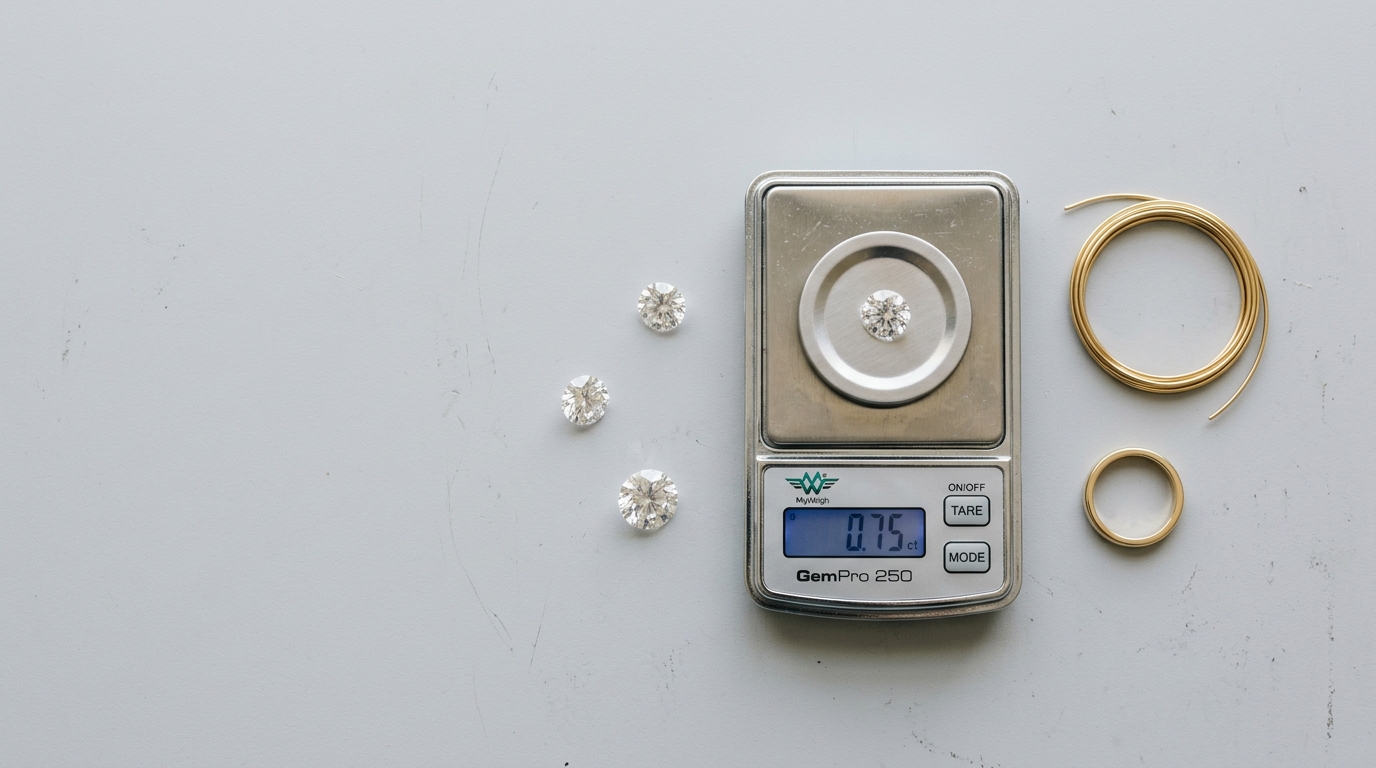
Pricing jewelry accurately is one of those things that looks simple from the outside and is genuinely hard in practice. The metal weight changes depending on band width and finger size. Stone specifications vary by shape. Labour and setting costs are easy to undercount. And when you're pricing a design from an AI render — before a CAD file even exists — you're making educated guesses that compound into margin errors by the time a piece reaches production.
Diatech Studio has a tiered pricing system designed to catch those errors before they become costly. It starts with an AI estimate you can run on any design image and ends with a fully verified BOM that feeds into future AI generations. Here's how the whole system works.
Start with the AI estimate
The fastest entry point is the Estimate Pricing tool in the AI menu. Select any design image in your project and run it. The AI reads the image — identifying visible metals, stone shapes, approximate stone sizes, and setting style — and generates an automatic cost breakdown in the Pricing panel.
This isn't meant to be the final price. It's a starting point. The AI is working from visual information, so it can approximate metal weight from proportions and stone carats from apparent size, but it can't measure what it can't see. A deeply set stone will read as smaller than it is. A wide band photographed at a slight angle will look lighter than its actual weight.
What the estimate gives you is a sanity check. Is this design roughly in the right pricing bracket for the client's budget? Is the stone cost going to dominate the metal cost in a way that changes the brief? You can answer both questions in seconds, without any manual calculation.
Build out the full BOM
Once you have the estimate, you can refine it in the Pricing Manager — a full editing dialog that shows every line item: metal type, metal weight, stone specifications for each stone in the design (shape, color grade, clarity grade, carat weight), and any miscellaneous extra charges like setting labour, engraving, or finishing.
Every field can be overridden manually. So if the AI estimated 3.2 grams of 18k yellow gold but your CAD artist has confirmed it's 4.1 grams, you update that line directly. If you want to add a charge for a custom clasp that won't appear in any render, you add it as a miscellaneous extra.
Once you've manually confirmed a field, the Pricing Manager marks it as verified and treats it as ground truth for that project. Verified pricing data is automatically included as context in future AI generations — meaning if you ask the AI to redesign the setting while keeping the stone the same, it knows the confirmed stone specs and won't generate something that changes the cost structure.
Importing from a spreadsheet
For studios that already maintain costing spreadsheets or work with a production house that supplies BOM data, Studio accepts CSV import directly. The importer parses metal, stone, and extra-charge rows, shows you a preview of what it's found, and populates the pricing fields on confirmation.
This is the fastest path when you're bringing an existing collection into Studio — you don't need to re-enter pricing data you already have. Upload the CSV, confirm the parse, done.
The Price Book: organization-wide gem rates
Individual project pricing pulls from a centralized Price Book that your org admin maintains. This is a rate table that sets per-carat prices for every combination of gem type, shape, color grade, clarity grade, cut grade, and size range.
When the AI runs a pricing estimate, it uses these rates to calculate stone costs. When you manually enter stone specs in the BOM, the total calculates using the same table. Every project in your organization works from the same rate assumptions, which means pricing is consistent across designers and across seasons.
Admins can update rates in bulk via CSV import or edit individual rows directly in the table. Fields left blank act as wildcards — a rule for Round, D color, VS1 in any size range will apply to any round D/VS1 stone unless a more specific rule exists.
Non-admin team members can view the Price Book but not edit it, which keeps pricing governance where it belongs.
Diamond Inventory Matcher
One step further: if your studio runs a connected diamond inventory, the Diamond Inventory Matcher lets you check stock directly from a project's pricing panel.
When a design has confirmed diamond specifications — shape, carat, color, clarity, cut — you can run the matcher to search your available inventory for stones that fit those specs. It shows you available pieces, carats, and average price per carat, along with a green or red indicator for whether sufficient stock exists to fulfill the requirement.
This closes the loop between design and procurement. You don't have to switch to a separate inventory system, cross-reference the specs manually, and then come back to confirm availability. It all happens inside the project.
Why verified pricing matters for generation
The detail most people miss is that confirmed pricing data becomes part of the AI's context for that project.
If a client asks for a variation with a slightly different band profile, and your BOM already has confirmed metal weight, stone specs, and setting costs, the AI knows the cost structure it's working within. It won't generate a variation with a dramatically heavier band that would blow the budget, and it won't suggest a stone size that's inconsistent with what's already specified.
This is most useful on projects where the design is fairly locked and you're iterating on details — the pricing context keeps generation anchored to the real-world cost constraints of the piece.
The practical order
A sensible pricing workflow for most projects looks like this. Run the AI estimate early, as soon as you have a design you're likely to develop. Use it to check budget alignment before investing more generation time. As the design gets more specific, open the Pricing Manager and start manually confirming the fields you're confident about — stone shape and approximate carat first, then metal type, then weight once you have CAD data. Import a CSV from your production house once the design is fully specified. At that point the BOM is complete, the Price Book rates apply, inventory can be checked, and the verified data is feeding back into any further generation.
None of this replaces a final cost sign-off from your production team before manufacturing. But it does mean that by the time a design reaches that stage, it hasn't been flying blind on cost assumptions since day one.