
How to Use AI Jewelry Design to Win More Custom Orders
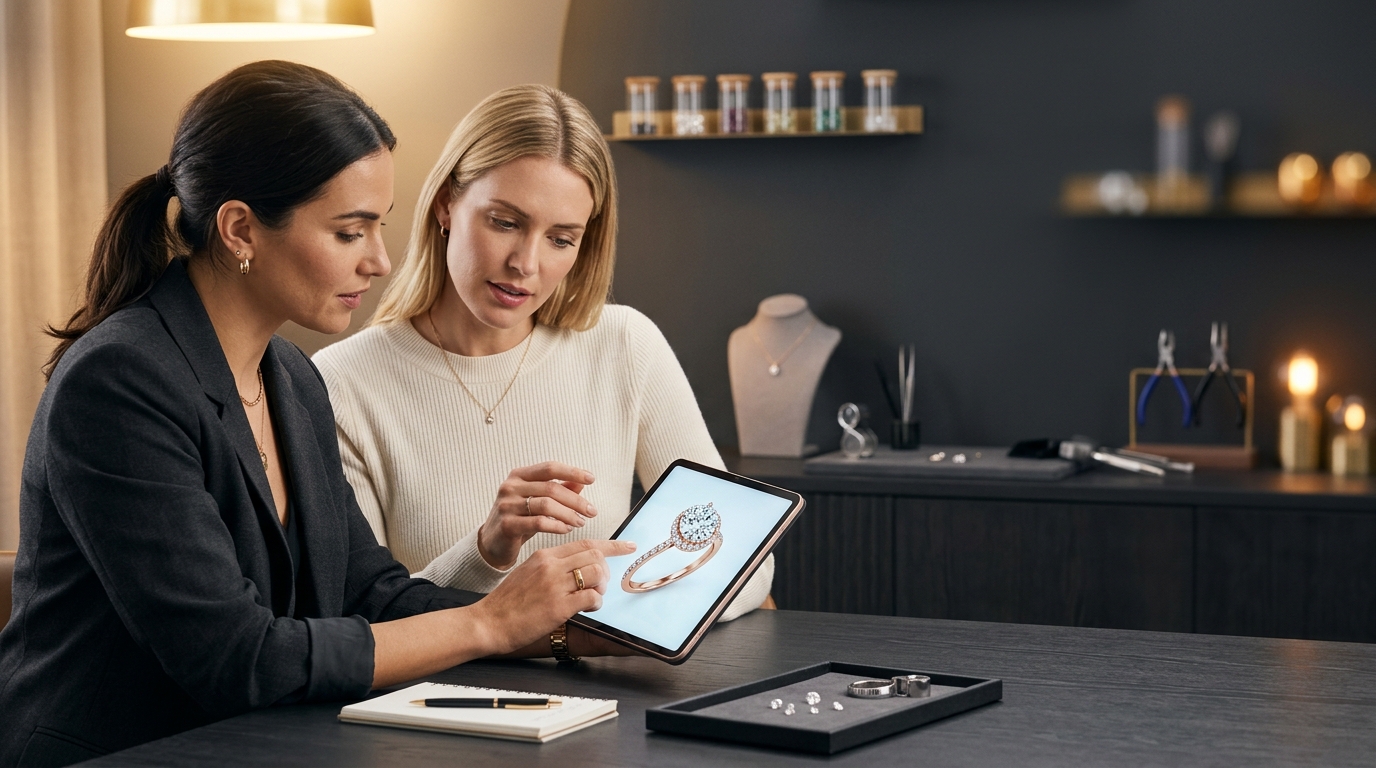
Most custom orders die in the gap between the client's head and the jeweler's sketchpad.
A client comes in with a picture saved on their phone, a vague idea about "something vintage but modern," and maybe a photo of a ring their grandmother wore. You take notes, promise to sketch something up, and send it over in a week. By then, they've talked themselves out of it, found another jeweler, or just lost momentum. It happens more than anyone wants to admit.
AI jewelry design is changing this, not by making designers obsolete, but by collapsing that gap. Instead of a week's turnaround, you can generate something tangible in the same conversation. And what happens when you show a client a real render before they leave your studio? The close rate goes up. Significantly.
Here's how to run that consultation.
Start With Whatever They Bring
The first thing to understand about AI jewelry design for custom work is that you don't need a polished brief. You work with what the client actually has.
If they have a reference photo on their phone, upload it directly. Diatech Studio takes the image and uses it as a starting point for generation — the AI reads the aesthetic, the metal tone, the stone shape, and produces a design that's in the same family without being a copy. This is faster than typing a description, and it keeps your interpretation of the brief honest.
If they're describing something verbally and struggling to find words, tap the voice prompt button and let them talk. The transcription goes straight into the prompt field. Clients often describe jewelry better in conversation than they do in writing, and this captures it without you having to play secretary while also trying to listen.
If they've brought a hand-drawn sketch, upload that too. Studio will interpret the proportions and forms in the sketch and render a polished version. It's not perfect for highly technical drawings, but for a client scrawl on a napkin, it works surprisingly well.
Generate Fast, Don't Overthink the First Prompt
The goal of the first generation isn't to nail it. It's to give the client something to react to.
Use Auto mode for the first pass. Type a short description based on what you've heard and generate. Within a minute, you have a photorealistic image on screen. The client's reaction to that first render tells you more about what they actually want than ten more minutes of conversation would.
If they like the overall direction but want to see more options, use the Variation tool. Set the similarity to Moderate or Low, generate three or four variations, and let them pick. What clients can't articulate in words, they can usually point to in a lineup.
The Compare Variations tool is useful here too. Put two candidates side by side, let the client drag the wipe divider, and ask which half they prefer. It sounds small, but it moves the conversation from abstract ("I want something more delicate") to concrete ("this one, on the left").
Show Them Three Angles, Not One
One of the most common friction points in custom consultations is that clients can't visualize how a design looks from different views. They approve a front-facing render and then feel uncertain about the side profile or the depth.
The Multiple Angles tool lets you re-render the same design from any camera position using azimuth and elevation sliders. Generate a three-quarter view, a side view, and an eye-level close-up. You now have three images of the same design from real-world viewpoints, and the client can see it as a three-dimensional object rather than a flat picture.
If the design has been taken to a 3D CAD model (available on Enterprise, and worth mentioning if the client is ordering at volume), the 3D viewer lets them rotate and inspect the model interactively. That level of tangibility tends to close a lot of lingering hesitation.
Edit the Part They Don't Like Without Touching the Part They Do
This is where most non-specialized AI tools fall apart. A client loves the band but hates the prong style. You change the prompt and regenerate. Now the band looks different too. You're back to square one.
Diatech Studio's Targeted Edit solves this directly. Draw a lasso around the setting, describe what you want to change, and the AI applies the edit only within that area. The band you both approved stays exactly as it was.
This sounds like a small thing, but in a live consultation it's the difference between a smooth refinement loop and a frustrating game of whack-a-mole where fixing one thing breaks another.
For stone and metal variations, the quick-select in the Flow mini app is even faster. Change the metal from yellow gold to rose gold with one tap and generate immediately. Clients often discover their preference for metal tone by seeing the options rather than being asked to choose in the abstract.
Share a Preview Before They Leave
Once you have a design the client likes, share it before the meeting ends. Don't email it later.
The Project Preview feature generates a clean, presentation-ready view of the project with no editing toolbar visible. It opens in a browser and works on any device, with no login required. Copy the link, text it or AirDrop it to the client, and they're looking at it on their phone before they're out the door.
If you want to share a curated selection, create a quick catalog with their top two or three options and generate an external share link. They can browse on their own time, show their partner, and leave annotation feedback directly on the designs without needing a Studio account.
That annotation loop is useful. Clients leave comments pinned to the specific area of the image they mean, not a vague "can we make it more X" in a text message. You get actionable feedback instead of interpretive guesswork.
Close With a Price, Not a Guess
Here's the part that often gets skipped in a first consultation but shouldn't: pricing.
Once you have an approved direction, run the AI pricing estimate on the selected image. Studio reads the design and generates a line-item cost breakdown covering metals, stones, and extras. It's not a final quote, but it's a credible starting estimate that gives the client a number to anchor to.
If you have your gem inventory connected, the Diamond Inventory Matcher will cross-reference the stone specs in the estimate against what you actually have in stock. Walking a client through "here's what it might cost, and here's a stone I already have that fits this spec" is a materially different conversation than "I'll send you a quote next week."
The gap between consultation and commitment shrinks when there's a real number on the table.
The Shift Worth Making
Running an AI jewelry design consultation live with a client feels uncomfortable the first time. You're generating in front of someone, which means they see the messy first draft.
But that's exactly the point. When clients see the process, they trust the result more. They feel like collaborators instead of customers waiting on an order. The design becomes theirs in a way that a polished render arriving in their inbox a week later never quite achieves.
The jewelers doing this consistently report shorter approval cycles, fewer revision rounds after deposit, and clients who refer others specifically because of how the consultation felt. That's not a coincidence. It's what happens when you collapse the gap between a vague idea and something real.
Ready to try it? Start a free project in Diatech Studio and run your next consultation live.