
How to Design Jewelry on WhatsApp (Yes, Really)
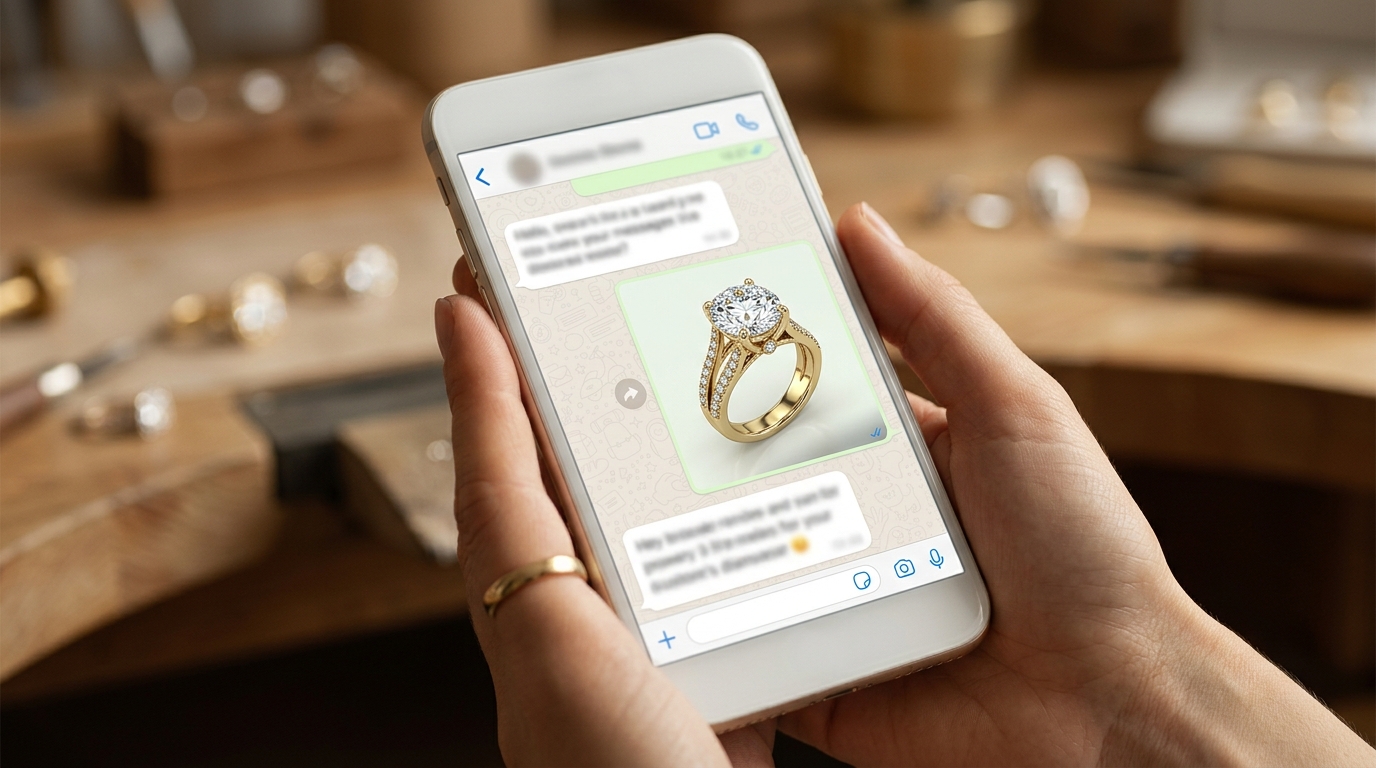
Here's something that surprises most people when they first hear it: you can design jewelry on WhatsApp. Not a watered-down preview. Not a "request a render" bot. The actual AI, the same one that powers the full web platform, available in a WhatsApp conversation.
For a lot of jewelry professionals, this changes how they think about when and where design work can happen.
How It Works
Diatech Studio's WhatsApp integration connects directly to your account. Once it's active, you have a set of simple commands and a conversational AI that handles the rest.
/new creates a fresh project and sets it as your active working session. Everything you send after that — photos, voice notes, text — gets processed in the context of that project.
/recent returns a list of your 10 most recently updated projects. Tap one to switch context immediately.
/open followed by a project URL or ID opens that specific project. /sku followed by a SKU code does the same by product code.
From there, the interaction is conversational. Send a photo and it uploads to the active project exactly as if you dragged it into the web interface. The first image you send to a new project automatically triggers an AI analysis of the design. Send a voice note and it's transcribed and treated as a text prompt. Send a text message and the AI responds — and acts.
The AI recognizes intent. If you type "make this ring more delicate, reduce the band width," it doesn't just reply with a plan. It generates the revised design and sends it back. If you type "how much would this cost to make," it triggers a pricing estimate and returns a breakdown.
The active project stays open for seven days, so you can put your phone down and come back to the same session without having to re-specify which design you were working on.
Why This Matters in Practice
Think about where jewelry design conversations actually happen. Not always at a desk with a browser open.
A sales rep is at a client meeting. The client wants to see a variation — different stone, different metal. Old workflow: take notes, go back to the office, email the design team, wait. New workflow: pull up WhatsApp, type the brief, get a render before the meeting ends.
A designer is traveling to a trade show. They get a message from a client asking about a piece they discussed last week. Instead of saying "I'll check when I'm back at my desk," they open WhatsApp, /open the project, and continue the conversation.
A wholesaler is reviewing a collection on their commute. They want to flag a piece for revision and add a note for the team. WhatsApp lets them do this from a moving vehicle without switching apps or contexts.
A boutique owner is showing a customer options on their phone. They send a quick prompt, get a render back in seconds, and show the customer directly in the same WhatsApp thread they're already using to communicate.
Voice Notes as Design Prompts
The voice note feature is underrated. A lot of designers think in speech, not text. Being able to say "I want to see the same ring but with a round stone instead of oval, and maybe try a two-tone metal, white gold on top and yellow gold on the band" — and have that transcribed and processed as a prompt — is faster than typing it out.
The transcription handles jewelry terminology reasonably well. You don't need to slow down or use simplified language. Describe what you want the way you'd describe it to a colleague.
The Session Memory
The seven-day session continuity is a small detail that makes a big difference. Design conversations don't always resolve in one sitting. A client wants to think about it. A revision is needed. The work continues the next morning.
With session continuity, you don't start over. The AI knows which project you're working on, what's been generated, and what the context is. The conversation picks up where it left off.
What It Connects Back To
Everything done in WhatsApp lives in your Diatech Studio project. Renders generated via WhatsApp appear in the project's variation panel. Cost estimates generated via WhatsApp populate the pricing panel. The work doesn't exist in a separate mobile silo — it's all the same project, visible and editable from the full web interface when you're back at a desk.
This is the part that makes the integration genuinely useful rather than a gimmick. It's not a separate "lite" experience. It's the same platform, accessible from a different surface.
Getting Started
The WhatsApp integration is available on active Diatech Studio subscriptions. Set it up from your account settings and you'll have a contact to message.
The fastest way to understand it is to try it. Create a new project via the web, then /open it on WhatsApp and send a voice note describing a design direction. Watch what comes back.
studio.diatech.ai — the integration is part of the platform from day one.