
How to Turn Jewelry Renders Into Product Videos With AI
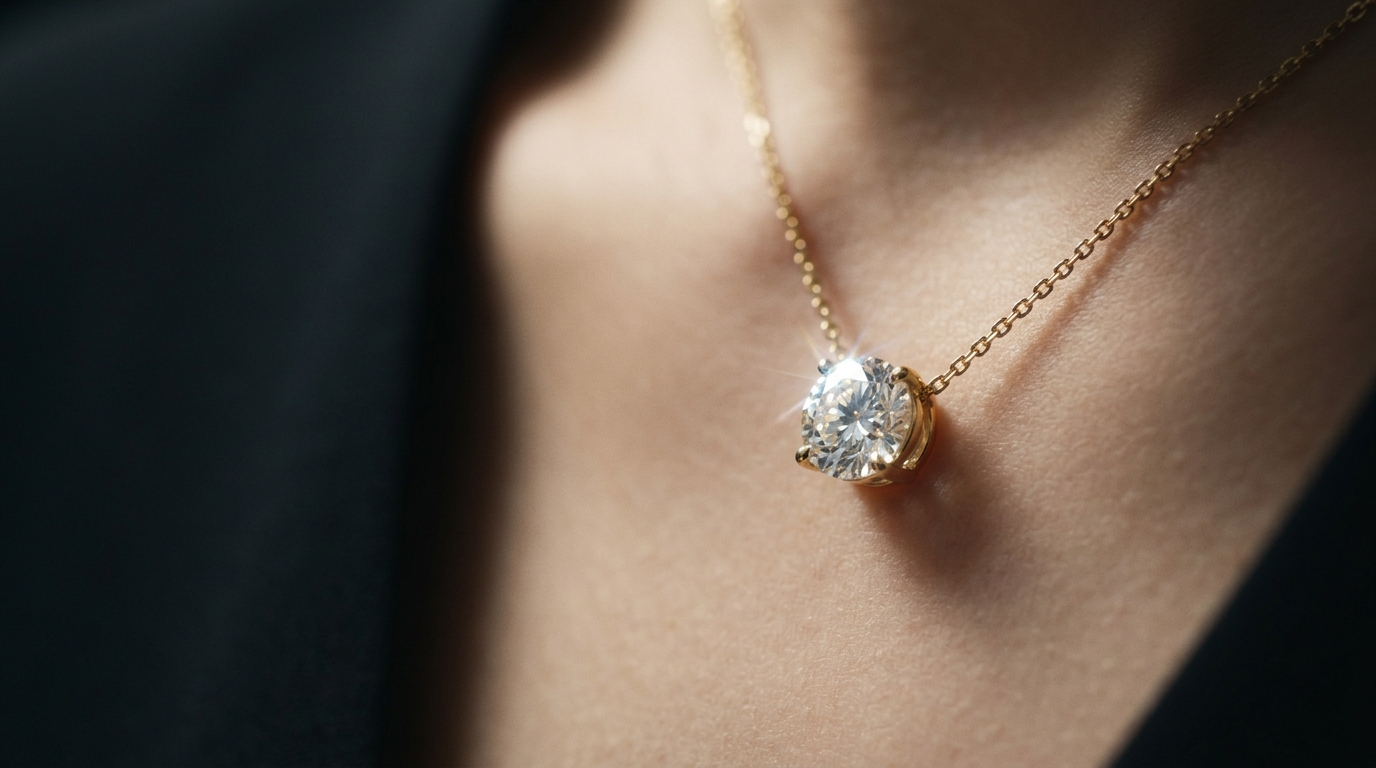
There is a consistent pattern across jewelry e-commerce: products with video outperform products without it. Dwell time goes up. Return rates go down. Conversion improves. The industry has known this for years.
The reason most jewelry brands still lead with static images isn't that they don't believe in video. It's that video is expensive, slow, and logistically painful to produce at catalog scale. You can photograph twenty pieces in a day. Producing twenty product videos takes weeks and a production budget most mid-size studios don't have.
The Videography tool in Diatech Studio changes that calculation. You start with a still image — a render, a lifestyle shot, anything in your project — and end with a short product video, generated in minutes.
How it works
The tool takes either a still design image or an existing video clip as its input. You write a short text prompt describing the motion or scene you want, choose a duration (5, 10, or 15 seconds), and submit.
For still-to-video, the AI animates the scene — adding subtle camera movement, fabric drift, atmospheric depth, or product rotation depending on what you describe. The output feels like a professionally shot clip because the motion is physically plausible: a pendant swings slightly on a chain, soft light shifts across a diamond facet, a hand turns gently to reveal a ring from a new angle.
For video-to-video, you provide an existing clip and a prompt describing how to evolve or restyle it. This is useful when you have raw footage from a shoot that needs a different mood, environment, or lighting treatment.
You can also supply multiple reference images to guide the visual style of the output — useful if you want the video to stay consistent with a specific campaign aesthetic or brand palette.
Adding audio
When generating from a still image, you can attach an audio file to the generation. The resulting video is output with that audio synced to it.
This means a finished, sound-on social post is one generation step away. Upload your design image, write your motion prompt, attach a piece of music or a voiceover recording, choose your duration, and submit. What comes back is a publication-ready video with audio — no editing software required.
For brands running paid social campaigns, this is particularly useful. You can generate five or six variations of the same product with different motion styles and different audio tracks, review them in Studio, and push the best-performing version directly to your campaign.
What to write in the prompt
The prompt describes what you want to happen in the video, not what the product looks like. The AI already sees the image — you're directing the scene.
Short, specific descriptions tend to work better than long detailed ones. Something like "slow camera drift from left to right, soft morning light, pendant catching light as it settles" gives the AI clear direction without over-constraining it.
For lifestyle imagery — a ring on a hand or a necklace on a model — describe the movement of the person or environment rather than the product: "hand gently turns toward camera, soft focus background, warm afternoon light." The jewelry moves with it naturally.
For product-on-surface shots — a ring on velvet, a bracelet on marble — describe environmental animation: "soft light rolls across the surface from left to right, gentle atmospheric haze lifts slightly."
If the first result isn't quite right, the project stays in your library and you can run another generation from it with a refined prompt. Each attempt adds a new variation, so you can compare two or three motion treatments side by side before choosing.
Matte Video: removing the background from footage
One step that's easy to overlook: if you generate a lifestyle video and want to use it on a web page with a non-white background, or composite it over a different environment, Studio's Matte Video tool strips the background from the clip.
It works the same way Remove Background does for still images — but on video. The result is an isolated footage clip of the product (or product-on-model) with a transparent background, ready to drop into any design environment. This is particularly useful for embedding product videos in e-commerce templates, presentation decks, or brand lookbooks where you need the video to sit on a specific background color.
Where video fits in the production workflow
The most natural point to generate product video is the same place you'd generate lifestyle photography — after the design has been approved and the final render is clean.
A practical order: generate and approve the flat render, run Upscale Image to bring it to 4K resolution, generate lifestyle variants with Place on Model if needed, then run Videography on either the flat render or the best lifestyle image.
For catalog use, add the video as a variation in the same project as the flat images. For social, download the clip directly and schedule it. For buyer presentations, a catalog deck with embedded video links is considerably more compelling than a static PDF — which is worth noting when you're preparing for a trade meeting.
The honest ceiling
AI video generation has improved dramatically, but it still has a ceiling. Fine jewelry with micro-pavé or complex prong work sometimes shows artifacts at the point where the AI is animating motion across very small details. The more intricate the piece, the more carefully you should review the output before using it publicly.
Longer clips also accumulate more motion drift — the 5-second output is typically cleaner than the 15-second one for detailed pieces. Running a short clip and looping it in a social scheduler is often a better strategy than generating a long one.
And for flagship campaign content that will run in high-visibility placements — a TV spot, a major e-commerce homepage, a printed lookbook — a real production shoot is still the professional standard. But for the product pages, the social feed, the wholesale catalog, and the trade show presentation? AI video covers all of that, at a fraction of the cost and time.
A brand producing fifty new SKUs per season can now have a short video for every single one. That used to be a budget line that existed only for the top five pieces. That gap is closed.