
Jewelry Product Videos With Audio: How to Go From Still Image to Social-Ready Clip in One Step
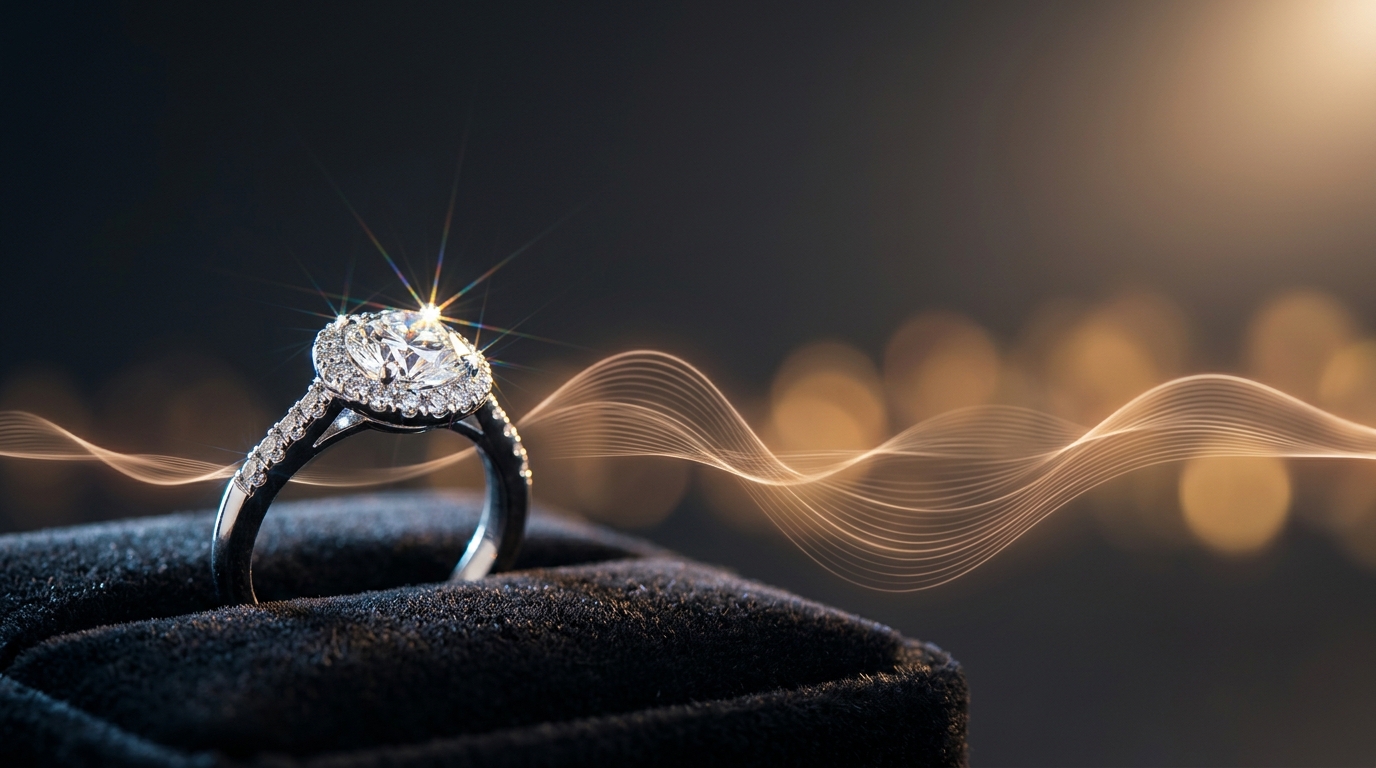
If you've ever tried to produce a short jewelry product video for Instagram or TikTok, you know how many steps are actually involved. Generate or source the clip. Open a separate editor. Find a track that isn't copyrighted. Sync the audio. Export. Compress. Re-export because the aspect ratio was wrong. By the time it's done, half a day is gone.
Diatech Studio's Videography tool now handles the entire thing in one submission — including the audio. You choose your clip duration and whether you want a soundtrack attached, and the tool delivers a finished, scored video ready to post. No timeline editing, no separate audio step, no third-party app.
This guide walks through exactly how to use it, what the output looks like, and where it fits into a practical jewelry marketing workflow.
Why Jewelry Video Actually Sells
Still images are still the backbone of most jewelry listings. But video — even a five-second atmospheric clip — does something a photo can't: it shows how a piece moves. The way a pendant catches light as it swings, the subtle shimmer of a pavé band at a slight angle — those moments drive purchase intent in a way a flat render just doesn't.
Social platforms know this. Instagram Reels, TikTok, and Pinterest Video all push video content harder than static images in their algorithms. If you're running any kind of social presence for a jewelry brand and you're not posting video, you're leaving reach on the table.
The problem has always been production cost. Filming actual pieces requires macro lenses, controlled lighting, a steady hand, and a lot of takes. Editing requires software most designers don't want to learn. And music licensing is its own rabbit hole.
AI-generated jewelry product video sidesteps all of that.
How Studio's Videography Tool Works
The starting point is any design image in your project — an AI render, a photo you've uploaded, or a still exported from the 3D CAD viewer. From the Design menu or the prompt bar, select Videography.
You'll see a prompt field and two key options:
Duration: 5, 10, or 15 seconds.
Audio: Each duration is available in two versions — without audio, or with audio as a combined selection. So if you want a 10-second clip with a soundtrack, you pick "10 seconds + audio" as a single choice. There's no separate audio upload step.
Type a short prompt describing the mood or movement you want — something like "slow rotation, warm golden light, cinematic feel" or "close-up reveal, sparkle focus, elegant atmosphere." You can also attach additional reference images to guide the visual style.
Hit generate, and Studio handles the rest. The output is an MP4 video file added directly to your project as a new variation.
The Audio Feature, Specifically
This is worth pausing on because it's easy to underestimate. Getting audio onto a product video used to mean one of three things: use a royalty-free track from a library site (and spend time searching), use your video editor's built-in music (limited, often generic), or pay for a proper license.
Studio's built-in audio option generates a track matched to the mood of the video and attaches it in the same operation. You don't source the music separately. You don't import it. You don't sync it manually. It arrives with the clip.
For a jeweler producing product content at any kind of volume — say, a new piece per week for social — this matters a lot. Audio-enabled clips are immediately postable. No editing step in between.
One practical note: if you're posting to platforms with specific audio requirements or want to use a branded track you already own, you can generate without audio and handle the music yourself in a standard editor. The no-audio versions are equally clean output.
What Makes a Good Jewelry Video Prompt
The prompt shapes the atmosphere of the clip more than the physical movement. You don't need to be highly specific about camera mechanics — the AI infers reasonable motion. What you're really directing is mood.
A few prompt patterns that work well for jewelry:
For rings and bracelets: "Slow rotation on velvet surface, warm backlight, soft focus background, close detail of metalwork"
For necklaces: "Pendant swinging gently, golden hour light, shallow depth of field, elegant and calm"
For statement earrings: "Side-to-side movement catching light, bright studio lighting, clean white background, dramatic sparkle"
For lifestyle feel: "Worn on hand, natural sunlight, warm skin tones, soft bokeh, feels personal and real"
Keep prompts under two sentences. The Videography tool doesn't need exhaustive direction — it's not a scene description generator. You're setting the tone, not scripting the shot.
You can also supply reference images alongside your design to guide the aesthetic. If you've generated a lifestyle image using Place on Model, for example, including that as a reference tells the video tool what visual environment to draw from.
Jewelry Product Video as Part of a Larger Workflow
Videography fits naturally at the end of a design review cycle, once a piece is approved and ready for marketing. Here's a practical sequence:
- Generate or finalize the design render in Studio
- Run Enhance Image or Upscale Image to make sure the still is print-quality
- Generate the jewelry product video from that polished still, choosing duration and audio together
- Optionally run Matte Video to strip the background from the clip — useful for overlay graphics or product pages that need a clean, isolated footage clip rather than a scene
- Download and post
The whole sequence stays inside Studio. There's no hand-off to a video editor, a music licensing site, or a design tool. If you're running a small team or a solo operation, that matters for time. If you're at a larger company producing dozens of assets per week, it matters for process consistency.
A Note on Video for Catalogs and Client Presentations
Jewelry product videos aren't just for social. They work well in catalog decks and client presentations too — dropping a five-second clip into a slide next to a still image adds a dimension that static layouts can't.
If you're using Studio's Catalog Deck feature to prepare a buyer presentation or client walkthrough, the video assets you generate live in the same project as your stills. You can use them alongside slides, share the project link with external reviewers who can leave annotation feedback on the clips, or simply include the video URL in a follow-up email.
This is especially useful for bridal clients, where the emotional impact of a moving piece — the way an engagement ring catches light at different angles — can seal the decision faster than a flat render.
Getting Started
If you haven't used Videography yet, the fastest way to try it is to open any existing design project, select a polished render, and open the Design menu. Pick Videography, write a two-line mood prompt, select "5 seconds + audio," and generate.
The output arrives as a new variation in your project. Download it, post it, and see how it performs against your static content. Most designers are surprised by how much more engagement a fifteen-second clip gets compared to the same image as a static post.
Once you've run a few, you'll start building your own set of prompt patterns for the aesthetic that works for your brand — and at that point, generating a polished, scored jewelry product video becomes a five-minute step at the end of every design cycle, not a production project.