
AI Ring Builder: Designing Custom Rings With an Interactive 3D Configurator
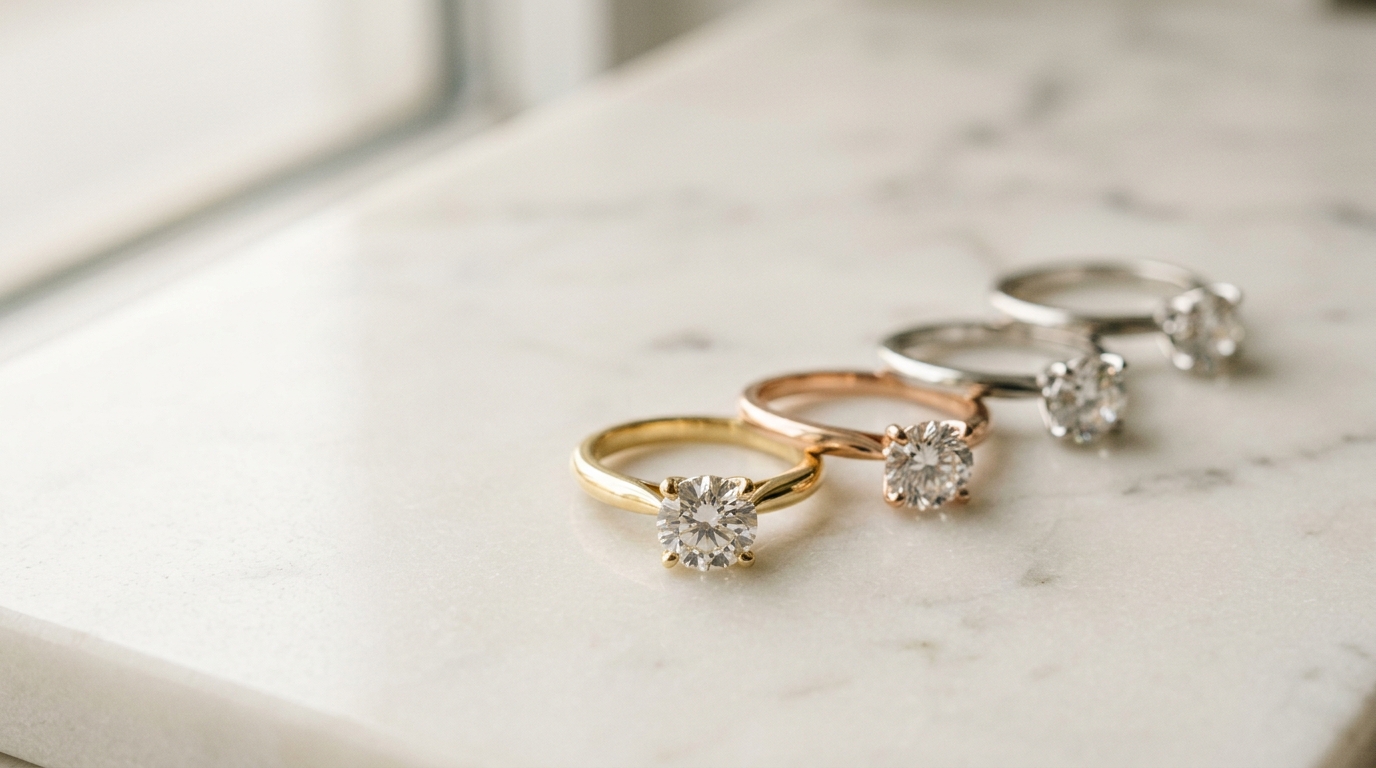
Designing a ring used to mean either sketching on paper and hoping the CAD artist interpreted it right, or wading through a catalogue of fixed options that never quite matched what the client had in mind. AI-generated flat renders helped, but there's a gap between "I like this image" and "I'm confident this is the ring I want made."
The Ring Builder in Diatech Studio fills that gap. It's a live 3D configurator — you pick a style, a stone, a metal, a setting, and the ring updates in front of you, fully rotatable, inspectable from every angle.
How the Ring Builder works
You'll find it under Mini Apps in the main navigation, listed as Ringcraft (and separately as the Diamond Ring Builder for the full 3D configurator).
Ringcraft is the AI-guided version. You choose from a set of named styles — Solitaire, Halo, Three-Stone, Vintage, Bypass, Toi et Moi — then set your metal (Platinum, Yellow Gold, White Gold, Rose Gold, Silver), band width, finish (High Polish or Matte), setting type, center stone shape, accent stones, and shank style. You can add a rough sketch or notes if you have something specific in mind. Hit generate and the AI produces a photorealistic ring image based on your selections.
Every Ringcraft session is saved to a searchable history, so if a client comes back three weeks later wanting something close to that pear-shaped rose gold halo you showed them, you can pull it up in seconds.
The Diamond Ring Builder is the interactive 3D side. This is where you really see the difference.
The 3D configurator: what you can actually control
The configurator is live — every change updates the 3D model in real time, no waiting for a render.
Ring style. Start by selecting from a library of named styles: Traditional Solitaire, Halo variants, Three-Stone, and others. The base geometry updates immediately.
Stone shape. Round, Oval, Cushion, Princess, Emerald, Pear, Marquise, Asscher, Heart, Radiant, Elongated Cushion. Eleven options. Switching between them on a Solitaire setting gives you a very clear read on proportions before any CAD work starts.
Stone size. Preset center-stone sizes from 1.00 ct to 4.00 ct in 0.50 ct increments. This matters for proportionality — a 4.00 ct oval reads very differently on the same band width as a 1.00 ct round.
Setting style. Options depend on the ring and stone combination: Classic Prong, Hidden Halo, Single Halo, Classic 6 Prong, Double Halo. Not every combination is available, which is realistic — some settings don't work with certain stone shapes.
Metal color. White Gold, Yellow Gold, Rose Gold. Swaps instantly on the 3D model.
Wedding bands. Optional top and bottom band add-ons can be toggled independently. Useful when a client is buying a bridal set and wants to see how the stack will look before ordering.
Throughout all of this, the 3D viewer is fully interactive. You can rotate the ring to any angle, zoom in to inspect the prong work, and check how the stone sits in the setting from directly above. It's not a rendered image — it's a live 3D model responding to your inputs.
Why this matters before CAD
The real value of the 3D configurator is what it saves you from: expensive iterative CAD revisions.
A typical ring design cycle without this kind of tool goes something like: client describes what they want, designer interprets and creates a CAD file, client sees the render and says "actually can the halo be smaller and can we try rose gold," designer revises, repeat. Each revision costs time and often money.
With the Diamond Ring Builder, that conversation happens interactively in a five-minute session. The client is in the room (or on a video call), you're spinning the 3D model, swapping stone shapes and metal colors in real time. By the time you hand off to a CAD artist, you have a fully specified brief — style, stone, size, setting, metal, bands — that's been visually confirmed, not just described.
It won't replace a CAD model for manufacturing. But it front-loads all the decision-making that usually happens in the CAD revision cycle.
Using Ringcraft for inspiration and iteration
The AI-generated side (Ringcraft) is better for creative exploration when you don't have a specific brief. You can run five or six variations across different stone shapes and settings in a few minutes, then pull the results into the main project library for your team to review.
Because every Ringcraft result saves to your history, you can come back to any previous design and apply the same configuration again — useful for building a consistent collection or comparing small variations across a style.
You can also take a Ringcraft result into the main workspace for further editing: Targeted Edit to adjust specific details, Multiple Angles to generate additional views, or the full AI chat to make freeform changes.
The practical workflow
Here's how this tends to fit into an actual design process:
- Start in the Diamond Ring Builder if the client has a clear style preference — configure in 3D, confirm the combination, document the specs.
- Use Ringcraft to generate an AI render from those specs as a visual reference.
- Move the Ringcraft result into a project. Run Multiple Angles to get front, side, and overhead views.
- Add the project to a catalog and share with the client via an external link for final approval before ordering CAD.
What used to take multiple rounds of CAD drafts to nail down gets resolved in the first conversation.
One thing worth knowing
The configurator works best as a pre-CAD decision tool, not a manufacturing spec. The 3D models in the configurator are optimized for visual clarity and real-time interaction, not for direct export to a CNC machine. When you're ready for production, Studio's 3D Model Generation feature (Enterprise plan) is the path to proper CAD output.
But for getting a client to "yes, that's exactly it" without three rounds of costly revisions? The Ring Builder does that job very well.