
Jewelry Studio Management: How to Track Team Output and Design Workload in One Place
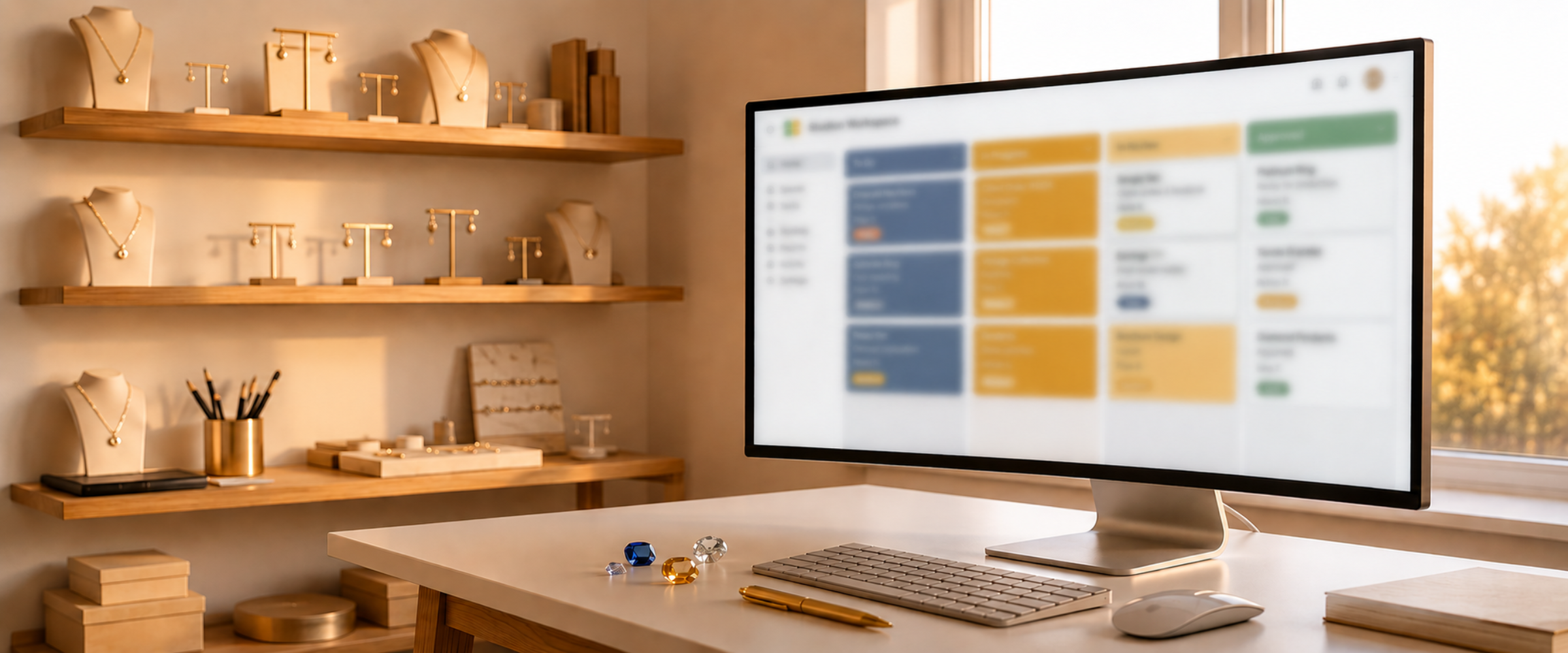
Managing a jewelry design team is a coordination problem as much as a creative one. You've got designers generating variations, account managers chasing client approvals, and someone trying to figure out how many AI credits you've burned through this billing cycle. Most studios track this across three or four different tools. Studio has all of it in one place.
If you've been using Studio just for design generation, this is worth knowing about.
Why separate tools create blind spots
The classic setup looks something like this: tasks in Notion or a shared spreadsheet, client feedback in email threads, time tracking in something else entirely, and AI usage buried in an account settings page nobody checks. It works until it doesn't. Someone misses a deadline because the task wasn't visible. A manager can't tell whether the team is overloaded or coasting. Credits run out mid-collection.
Jewelry studio management doesn't need to be that complicated, especially when your design work already lives in one platform.
Setting up Spaces for ongoing work
Spaces are Studio's project-management layer, but they're not just for one-off design sprints. You can run a Space as an ongoing workboard for your whole team.
Create a Space for something like "Q3 Collection" or "Client Orders" and start adding tasks. Each task takes an assignee, due date, priority level, and section tag. That last one is important because sections become your columns in Kanban view. A simple setup might be "To Do," "In Progress," "In Review," and "Approved" — the same stages your designs actually move through.
Kanban keeps the real picture visible
Switch to the Kanban board and you immediately see where work is stacking up. Columns can be grouped by assignee instead of status, which is useful when you want to check individual workload rather than pipeline stage. Columns with no tasks collapse automatically on load, so the board stays focused on active work.
When a design moves from "In Progress" to "In Review," a designer drags the card over. The task's activity timeline records the change automatically, so you always know when a handoff happened and who touched it. You don't need someone to file a status update.
Recurring tasks for the work that repeats
Some jewelry studio management tasks are genuinely recurring: weekly team check-ins, monthly pricing reviews, daily social post scheduling. Rather than recreating these manually, you can set a recurrence schedule when you create the task. If a due date passes without completion, the system advances it to the next occurrence automatically.
The daily worklog: time you can actually use
Studio has a worklog built into the Todos view. From there, you can open a popup for any date, see each team member's time entries against individual tasks, and get a total for the day. It sounds simple, but having time logged against named tasks — not just hours on a timesheet — means you can see which parts of the workflow are eating the most time.
There's also a one-click copy button that exports the day's log as a plain-text bulleted list. Useful for standups or for pasting into a client project summary without reformatting anything.
The worklog report for a manager's view
The Worklog Report in the analytics section gives you a daily breakdown across the whole team: logged minutes, expected minutes for the day, and a completion percentage for each person. Run it over any date range you want.
This is where jewelry studio management actually becomes a data problem in a good way. If a designer's completion rate is consistently low, that's a conversation to have. If the whole team is running behind during a particular week, maybe the collection brief was too loose or the revision cycle ran long.
Credit usage by person and by feature
The credit usage reports break down AI consumption three ways: by team member, by design project, and by feature type (generation, chat, upscaling, and so on).
The "by team member" report is the one most studio owners find useful right away. If one designer is burning through credits at twice the rate of everyone else, it's worth understanding why. Maybe they're exploring more aggressively. Maybe they're not using the quality selector at 1K for rough ideation. Maybe they're regenerating full images when the Targeted Edit tool would do the job on a specific area.
You can also set a credit cap per person so you're not surprised by usage. If someone hits their cap, further generation pauses until you raise it. That's a useful guardrail during expensive production phases when you need to stay on budget.
Keeping the team on track without micromanaging
A few notification features do a lot of the routine following-up for you.
The daily due-today push notification goes to each person's phone every morning listing their tasks for the day. They don't need to check the board first thing. The daily overdue email is the manager's equivalent: a single email each morning showing every overdue task across the team, grouped by who owns it and how many days late each item is. It also includes unread in-app notification counts by Space, so you can see at a glance where activity is concentrated.
When someone is @mentioned in a task comment, they get a push notification linking directly to the task. For jewelry studio management, this matters when a client approval comes back with changes — you can tag the relevant designer in the task without hunting for their contact separately.
Consolidating your view with the Todos tab
The Todos tab at the top level shows every task from every Space in one flat list, filtered by your preferences. Clicking any task opens the full detail panel inline without navigating away. For a studio manager or principal designer who's across multiple collections at once, this is significantly faster than jumping between boards.
What this actually replaces
If your team is currently using Studio for design and a separate tool for everything else, you're probably copying task status updates in two places and losing track of which one is current. The argument for keeping jewelry studio management inside Studio isn't that it's a perfect project management tool. It's that when your tasks, your designs, your annotations, and your team's usage all live in the same platform, the handoffs between them cost nothing.
A task can be directly linked to a project. A comment can have a design image attached, which automatically creates a project link. Time logged in the worklog maps to named tasks, not vague categories.
Getting started is straightforward: create a Space, add your current active work as tasks, assign them, and set due dates. The Kanban board gives you a real-time view within a few minutes. From there, the worklog and usage reports fill in over the billing cycle.
If you want a closer look at how the task system works specifically for design review cycles, the team review workflow post is a good companion read.