AI Jewelry Design Variations: How to Generate Every Stone Shape and Size From One Ring
The problem with "just make it in every stone shape"
Every jewelry buyer eventually asks it: "can I see this in oval instead of round?" Or in a bigger carat weight. Or in rose gold instead of white. On its own, that's a reasonable ask. The trouble starts when a client wants to see six shapes, four sizes, and three metal tones before they'll commit to anything. That's not one request anymore, it's seventy-two.
Most studios handle this by re-prompting the same design over and over, hoping the AI keeps the proportions, the setting style, and the overall feel consistent across every version. It usually doesn't. A round solitaire re-generated as an emerald cut can end up with a completely different band width or a prong style nobody asked for. So you end up hand-picking the closest matches and quietly hoping the client doesn't notice the inconsistency.
Stone Matrix is Studio's answer to that specific headache, and it's worth understanding if you sell anything where "same design, different stone" is a normal request. Which, if you're in bridal or fine jewelry, is basically every day.
How Stone Matrix builds each jewelry design variation
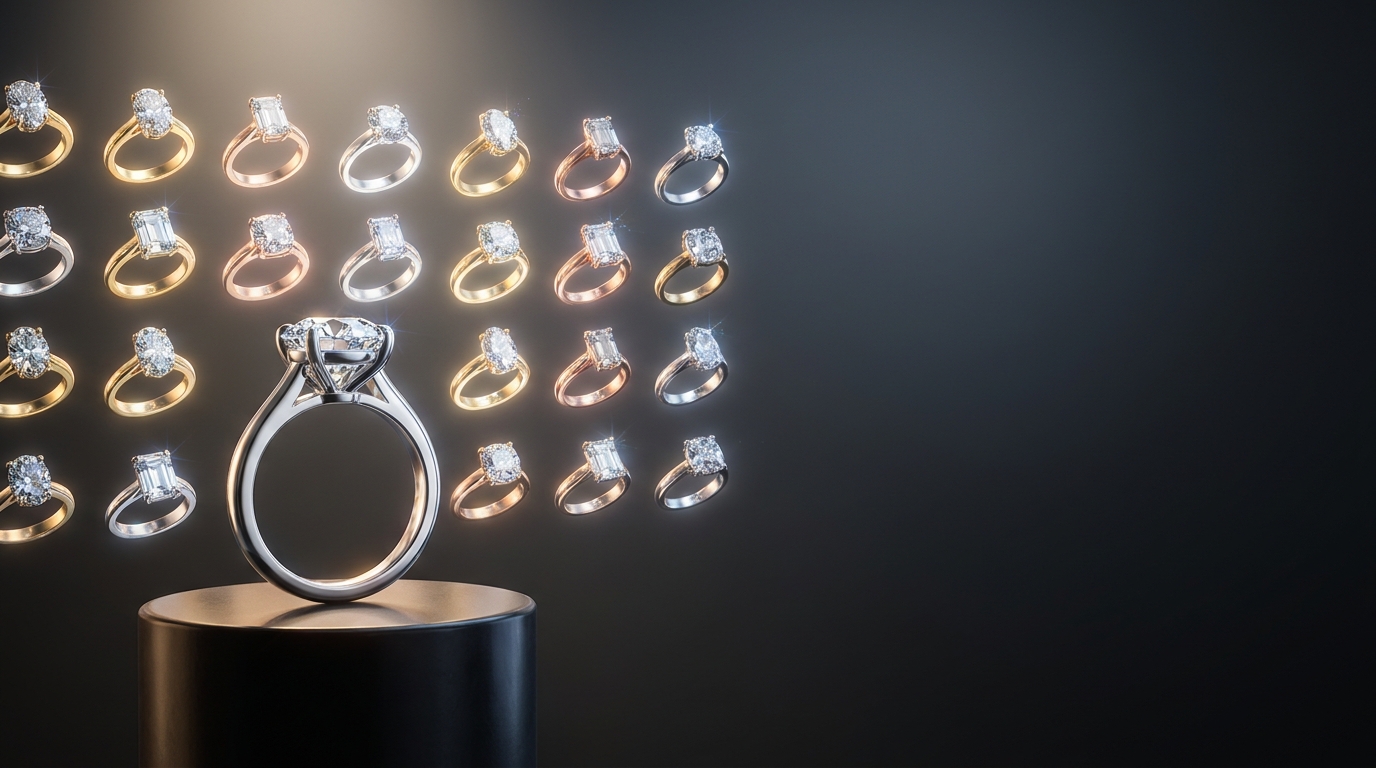
You start with one finished design image and describe its center stone: the shape, the carat size, and the metal tone. From there you pick which target shapes and sizes you actually want to see, Round through Baguette, and carat sizes from 0.25 all the way to 5.00.
Studio lays all of that out as a grid, shapes across the top, sizes down the side. Here's the part that matters most: every cell in that grid generates from its nearest finished neighbor, not from scratch and not from your original prompt. If you already have a 1.00 ct oval sitting in the grid and you want a 1.50 ct oval next to it, Studio uses the 1.00 ct oval as its reference. Same shape, slightly different size. Only one property moves at a time, which is exactly why the results hold together instead of drifting.
That single design decision is what makes this different from just spamming generations with a modified prompt. You're not asking the AI to guess what "oval version of this ring" means from a text description alone. You're showing it the closest real example you already have and asking for one specific, controlled change.
Filling the grid without burning through credits
Cells in the matrix start empty. Nothing generates until you tell it to, so you're not paying for combinations nobody will ever look at. If a client only cares about round, oval, and cushion, you fill those rows and leave the rest blank.
When you do know you want a full row, there's a shortcut for generating every remaining cell in that shape at once rather than clicking through each size individually. And once a cell is filled, you can view the whole grid in white gold, yellow gold, or rose gold from that same detail panel, so metal tone doesn't require rebuilding the matrix from zero.
A progress bar sits at the top the whole time, which sounds minor but actually changes how you work. You can see at a glance how much of a collection direction is actually finished versus still theoretical, which is useful when you're updating a client mid-conversation.
Where these jewelry design variations end up
Once a cell is generated, you're not stuck looking at it in a small grid thumbnail. Click into any cell and you get everything that design already has: prior generations for that exact combination, the option to generate more, and a direct link into the full Studio workspace if you want to take that specific variation further. You can also generate a model photoshoot image straight from a completed cell, so a finished stone-and-metal combination becomes something a client can picture on an actual hand, not just a studio render on white.
When it's time to hand things over, the whole matrix downloads as one batch, already named by shape, size, and metal tone. A 1.00 ct oval in white gold comes out of the export labeled as exactly that. If you've ever had to manually rename forty product photos before uploading them to a catalog, you'll understand why that's a bigger deal than it sounds.
A quick note on what it's not
Stone Matrix isn't a replacement for Agent Mode or bulk batch jobs, and it's not trying to be. Agent Mode is for generating a spread of different design concepts from one creative brief. Stone Matrix is for the opposite problem: you already have the design you want, and you need every reasonable jewelry design variation of that one thing, cleanly and consistently. If a client has settled on a setting style and just needs to see their options, this is built for exactly that moment in the sales conversation.
Try it on your next client request
Next time someone asks to see a design "in a few different stones," skip the manual re-prompting. Open the finished piece, start a matrix, and fill in the shapes and sizes that actually matter to that conversation. You'll have a consistent, exportable set of jewelry design variations ready before the client finishes their coffee.