Custom Ring Design Made Simple: How Ringcraft Turns Your Choices Into a Photoreal Render
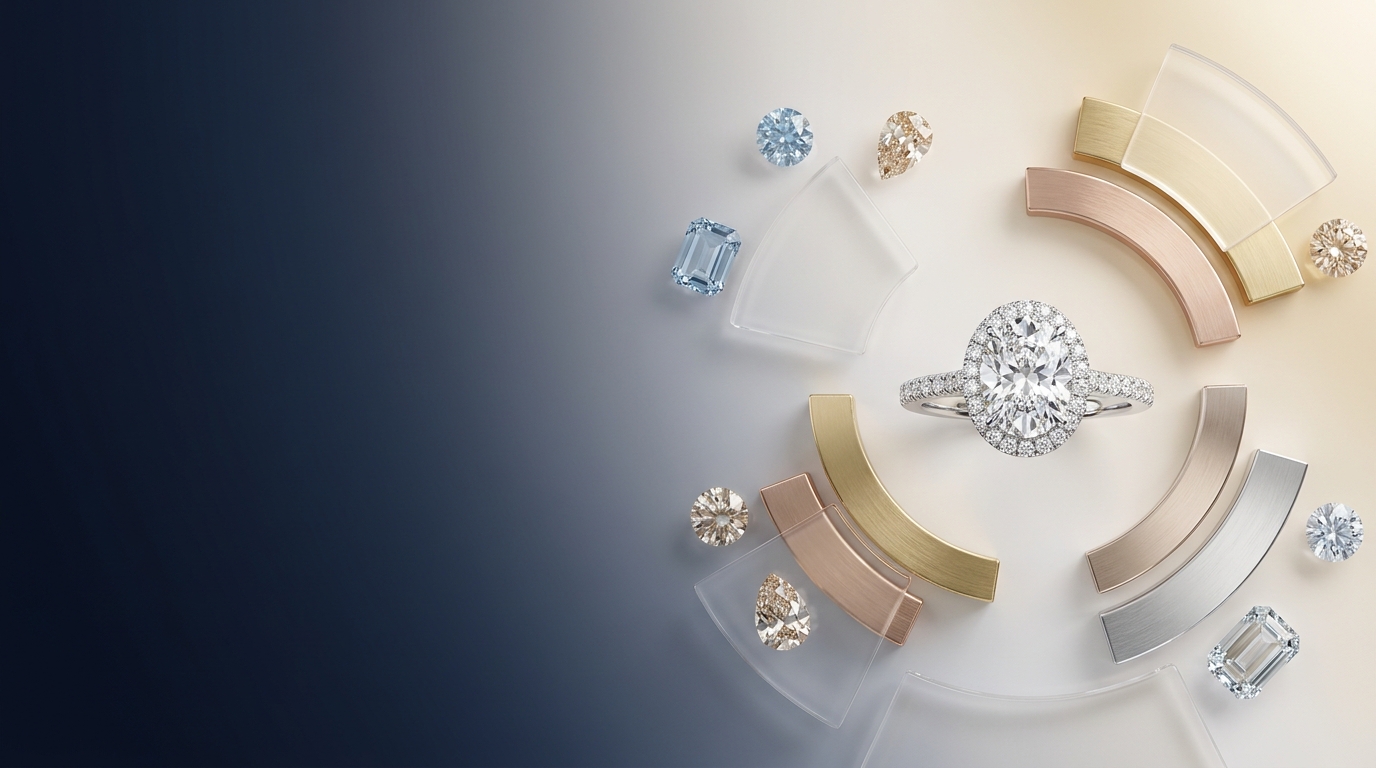
Most custom ring design conversations start the same way. A client says "something like a halo, but not too fussy," and you spend the next hour translating that into a prompt, a sketch, or a pile of Pinterest links. Half the time you're still guessing what they meant.
Ringcraft, one of the focused tools inside Diatech Studio, cuts that translation step out. You pick the ingredients from a guided set of options, and Studio generates a photorealistic top-down ring image from your choices. This post walks through how custom ring design works in Ringcraft, and where it helps most.
What Ringcraft Actually Does
Ringcraft is a guided ring designer. Instead of writing a paragraph and hoping the model reads your mind, you make a series of specific choices:
- Ring style, such as Solitaire, Halo, Three-Stone, Vintage, Bypass, or Toi et Moi
- Metal: Platinum, Yellow Gold, White Gold, Rose Gold, or Silver
- Band width and finish, either High Polish or Matte
- Setting type, center stone shape, and accent stones
- Shank style
You can also add a sketch or a few notes if there's a detail the dropdowns don't cover. Then Studio renders the ring from above.
That's it. No prompt engineering, and no remembering which words got you a good prong last time.
Why Guided Choices Beat a Blank Prompt for Custom Ring Design
A free-text prompt is great when you want surprise. Custom ring design usually wants the opposite. A client has already decided on rose gold and an oval center stone, and what they need to see is how it looks with a thin matte band versus a wide polished one.
When every variable is a named option, you change one thing at a time. If the render comes back and the shank is wrong, you change the shank. You don't rewrite the whole description and risk losing the part that was working.
It also helps new team members. Someone on their first week can produce a sensible ring without knowing your house prompt style, because the options already speak jewelry.
A Simple Walkthrough
Here's how a typical session goes.
Start with the style and metal
Pick the ring style first, since it shapes everything else. Then choose the metal. If the client hasn't decided, generate the same ring in two or three metals and compare them.
Set the details that change the silhouette
Band width, finish, setting type, and shank style all affect how the ring reads. A Matte finish on a Vintage style feels very different from High Polish on a Solitaire, so it's worth trying a couple of combinations before you settle.
Choose the stones
Select the center stone shape, then add accent stones if the design calls for them. If you already know the exact specs you need to build to, Studio's Technicals tool is the better next step, since it lets you lock in stone dimensions and prong style.
Generate, then refine
Hit generate and review the top-down render. If something's off, add a note or a quick sketch to point it in the right direction.
Reusing Past Designs So Your Rings Stay Consistent
This is the part I find most useful in practice. Ringcraft keeps a searchable history of your past designs. You can reapply the same options to a new ring, or take any earlier result and vary it.
Say you designed a three-stone ring last month and a returning client wants "the same thing, but in platinum." You don't have to reconstruct it from memory. Pull it from history, change the metal, and generate. For studios that sell a signature look, that kind of repeatability matters a lot.
Where Custom Ring Design in Ringcraft Fits in Your Workflow
Ringcraft gives you the first strong image. From there, the rest of Studio picks up:
- Use Targeted Edit to change just the stone or the setting on a render you almost like.
- Use Multiple Angles to see the ring from other viewpoints.
- Use 3D model generation to turn the design into a CAD model, if you're on the Enterprise plan.
- Use Estimate Pricing to get a cost breakdown from the metals and stones the image shows.
So a client conversation can go from a rough preference to a priced, viewable design in one place, without bouncing between apps.
Try It on Your Next Ring Brief
Next time a client describes a ring in vague terms, don't write the prompt yourself. Open Ringcraft, pick the style, metal, stone, and setting together with them, and generate. Seeing a real image in front of them usually gets you to a decision faster than another round of descriptions.
Ready to give it a go? Open Diatech Studio, launch Ringcraft, and design your first custom ring today.