
Jewelry Video Background Removal: How to Turn Any Product Clip Into a Scene-Ready Asset
Why Baked-In Backgrounds Are a Problem
You generate a gorgeous product video in Studio — a diamond solitaire ring rotating slowly under warm studio lighting, shot at 4K. It looks great. Then you go to upload it to your website and realize the background is a soft grey gradient that clashes with your site's black theme. Your Instagram Reel template wants white. Your client's retailer portal has a cream background. And someone on the team wants a lifestyle version with marble.
This is the baked-in background problem. It's not unique to AI-generated video — it affects any product footage shot on a fixed set. But when you're iterating fast and generating multiple product videos at once, manually rotoscoping the background out of each clip in Premiere or After Effects eats up the time you saved by generating them in the first place.
Studio's Matte Video tool solves this in one step.
What Matte Video Actually Does
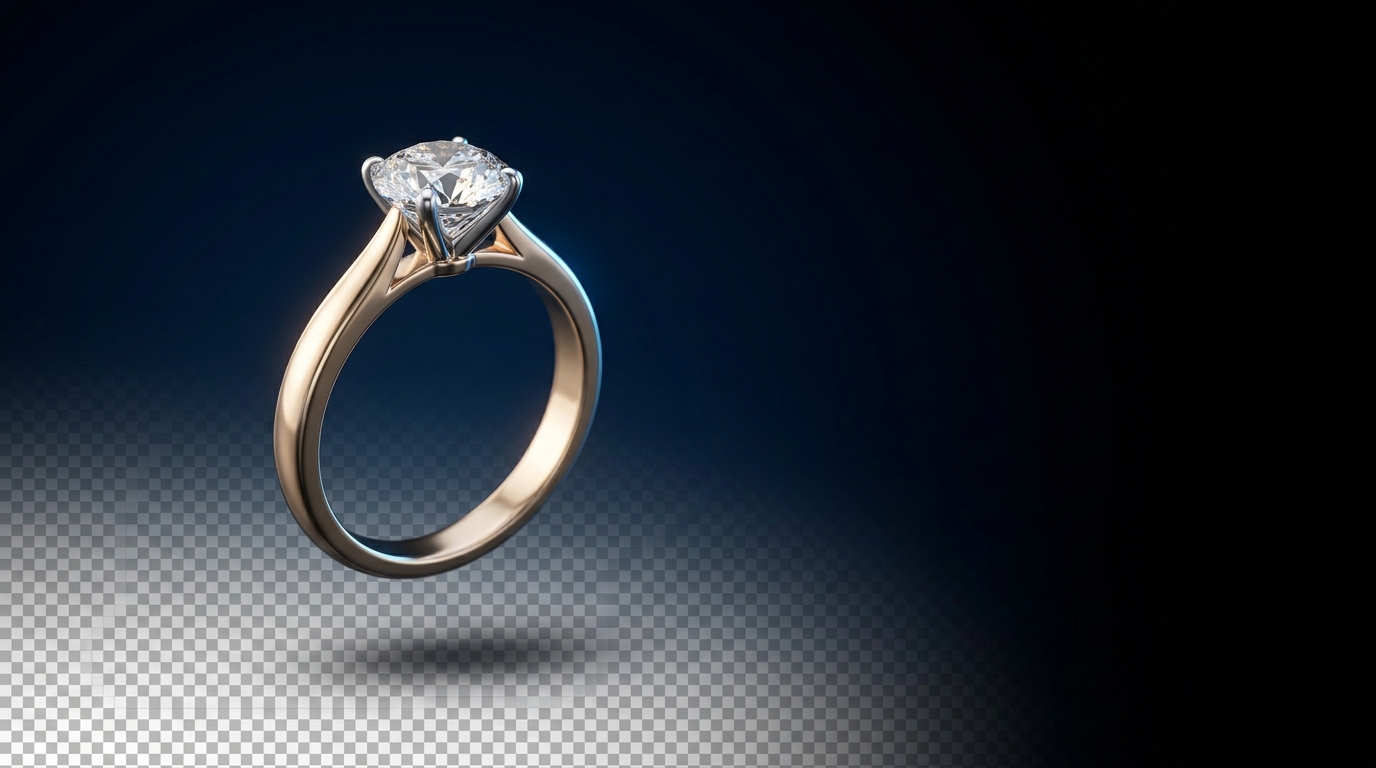
Matte Video removes the background from a product video file and returns clean, isolated footage. You get the jewelry — moving, rotating, lit exactly as it was rendered — separated from whatever was behind it. What used to be the background is now transparent.
The output has an alpha channel, so wherever you drop the clip, that surface becomes the new background. Put it on white for a clean product page, on black for a story format, or layer it over a lifestyle photo for editorial content.
You're not regenerating anything. You're extracting the subject from the footage you already have.
How to Run It in Studio
The tool accepts MP4 video files as input — exactly what Studio's Videography tool outputs. The two connect directly:
- Generate your product video using the Videography tool (5, 10, or 15 seconds, with or without audio).
- Open the project and select the video variation.
- From the Design or Market menu, choose Matte Video.
- Studio processes the clip and returns the matte version as a new variation in the same project.
No settings to configure, no rotoscoping, no frame-by-frame adjustments. The whole process takes a fraction of the time it would take manually in any video editor. And because the output lands in the same project, you keep the original and the matte side by side.
What You Can Actually Do With the Isolated Footage
This is where it pays off. Clean, background-free jewelry video is a flexible asset with more uses than you might initially think.
Product pages: Most jewelry e-commerce themes work better with footage that sits on the page's own background rather than a studio backdrop that clashes with the site design. Isolated video fits any layout without custom shooting.
Ad templates: Performance ad templates on Meta, TikTok, or Google Display typically have fixed layouts with defined background colors or lifestyle imagery baked in. Isolated footage drops into these without any trimming or masking work from a designer.
Social reels and stories: A clean footage clip layers cleanly over a branded gradient, texture, or motion background in any mobile editing app. The matte does the hard work; the final creative decision stays with you.
Lifestyle composites: Combine isolated jewelry footage with a still lifestyle background — a marble counter, velvet surface, an outdoor scene — to produce lifestyle-style video content without a studio setup or photographer.
Pairing It With Remove Background
If you're already using Studio's Remove Background tool on static images, Matte Video is the direct equivalent for video. They fit naturally into the same workflow:
- Generate design variations.
- Pick the best and upscale it.
- Run Remove Background to get a clean cutout for your product catalog.
- Run Videography to generate the product video.
- Run Matte Video to get isolated footage for everywhere else.
You end up with a static cutout and clean video from the same source render, with no outside software involved.
Getting Good Results
Matte Video works best when there's clear contrast between the jewelry and the background. AI-generated videos from Studio tend to work well for this — the rendering produces reasonably defined edges and well-lit subjects. If you're uploading external video files you shot yourself, flat or white studio backgrounds produce cleaner mattes than busy or textured ones.
For pieces with very fine detail — thin chain necklaces, delicate pavé settings, open-lattice rings — check the matte output carefully at the edges. Fine detail is harder to separate precisely. For client-facing deliverables where quality matters, run the Videography tool at a longer duration (10 or 15 seconds) where the rendering has more frames to work from.
The Practical Point
Generating a product video takes a prompt and a few minutes. Getting that video to actually work across every context your marketing team needs used to require a separate editing step that not every studio has the bandwidth for.
Matte Video closes that gap. The isolated footage goes wherever you need it, and you're not waiting on a video editor to get it there.
If you're already generating product videos in Studio, try running Matte Video on your best-performing designs. The extra step is small, and what you get back is a version of that asset that's genuinely reusable across your whole marketing stack.