 Sep 26, 2026
 How to Split a Multi-Angle Jewelry Catalog Photo Into Individual Design Variations
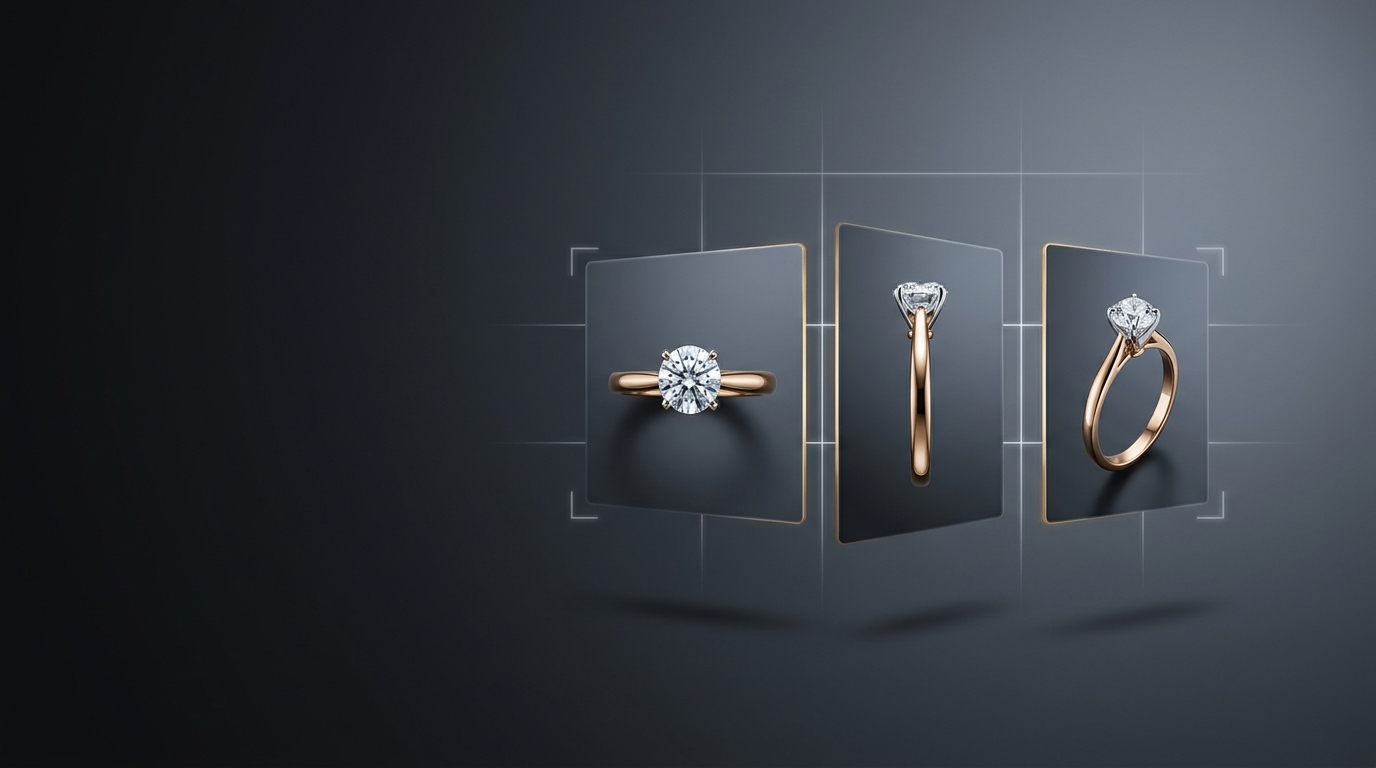
If you've ever opened a supplier's catalog shot and found four angles of the same ring squeezed into one image, you know the annoyance. Front, side, top, and a close-up all crammed onto a single canvas, and you just want to work with one of them. Cropping it by hand in another app, then re-uploading, then hoping the crop lines up cleanly, eats up time you don't have. That's the exact problem Studio's Split tool was built to solve, and it's worth understanding if multi-angle jewelry catalog photos show up in your workflow at all.
What the Split tool actually does
Split takes a single multi-angle catalog image and automatically separates it into individual design crops. Each crop lands in your project as its own variation, ready to edit, price, or generate from immediately. You're not manually drawing crop boxes or guessing where one angle ends and the next begins. Studio reads the image, finds the distinct shots inside it, and pulls each one out as a clean, standalone asset.
It sits alongside Upscale, Enhance, and Remove Background as a process step, which tells you a lot about how it's meant to be used. It's not a standalone generation tool you reach for occasionally. It's part of the everyday cleanup work that turns a raw image into something you can actually build on.
Why multi-angle jewelry catalog photos are such a headache
Anyone who sources from overseas manufacturers or works with a photography team knows this pattern well. A vendor sends over a single JPEG with the front view, a three-quarter angle, and a detail shot of the setting, all composited into one frame for easy sharing over email or WhatsApp. It's efficient for the person sending it. It's a mess for the person who has to actually work with the individual pieces afterward.
Before you can generate a variation, price a design, or run it through Enhance, you need one clean image, not four crammed into one. Doing that split manually means opening an editor, eyeballing the boundaries, cropping, exporting, and re-uploading, once per angle. For a single ring that's a few minutes lost. For a batch of forty SKUs coming in from a manufacturer, that's an afternoon gone before you've done any actual design work.
How to split a jewelry catalog photo in Studio
Once the multi-angle image is in your project, you'll find Split grouped with the other process tools, Upscale, Enhance, and Remove Background. Run it on the image and Studio identifies each distinct angle and separates them into their own variations. From there, each one behaves like any other image in your project. You can run Auto or Targeted Edit on it, send it to Estimate Pricing, drop it into a Moodboard for comparison, or queue it for 3D model generation if it's a clean enough angle.
There's nothing to configure beyond selecting the image and running the tool. That simplicity is the point. It's a step meant to remove friction, not add another set of options to think through.
Where this fits in a real jewelry design workflow
If you've read our post on running a 500-SKU batch job, you already know how much of the work at scale is really about clean inputs. Split fixes one of the more common ways inputs arrive dirty. Combine it with Upscale for print-ready resolution and Remove Background for catalog-ready cutouts, and you've got a short pipeline that turns whatever a vendor sends you into assets that are actually usable in a client presentation or a product listing.
It's also worth pairing with Multiple Angles if you're building out a full catalog view of a piece. Split handles the angles you're given. Multiple Angles generates the ones you're missing. Between the two, you can usually get a complete set of views for a design without going back to the source at all.
A small tool that saves real time
None of this is flashy. Split isn't going to generate a new design or reimagine a stone setting. But if you're the person who spends part of every week untangling supplier photos before you can even start the work you actually care about, it's the kind of feature that quietly gives you back your afternoon. Open a multi-angle jewelry catalog photo in your next project and run Split on it before you do anything else. You'll notice the difference the first time you use it.
Recent Posts
Compare Jewelry Design Variations Side by Side Instead of Guessing
A look at Diatech Studio's Compare Variations tool: how the drag-to-reveal wipe divider makes it easy to spot the real differences between AI-generated jewelry renders before you pick one.
Jewelry Design Studio Reporting: How to See Credit Usage, Task Productivity, and Worklogs in One Place
A walkthrough of Diatech Studio's credit usage, task productivity, and worklog reports, so studio owners and team leads can catch overloaded designers, expensive workflow habits, and slipping projects before they become real problems.
Voice AI Jewelry Design: What Changes When You Talk Instead of Type
A look at Diatech Studio's Live voice conversation mode: how real-time, two-way spoken design sessions differ from one-way voice prompts, and when to actually use them with clients.